Blog
NotebookLM Audio Overview Complete Guide: Absorb Document Knowledge Efficiently with AI Podcasts
A complete guide to NotebookLM Audio Overview and Interactive Mode—from generation steps and use cases to optimization tips—helping you turn PDFs and papers into listenable, question-ready learning podcasts with Google's AI note-taking tool.
NotebookLM Audio Overview Complete Guide: Absorb Document Knowledge Efficiently with AI Podcasts
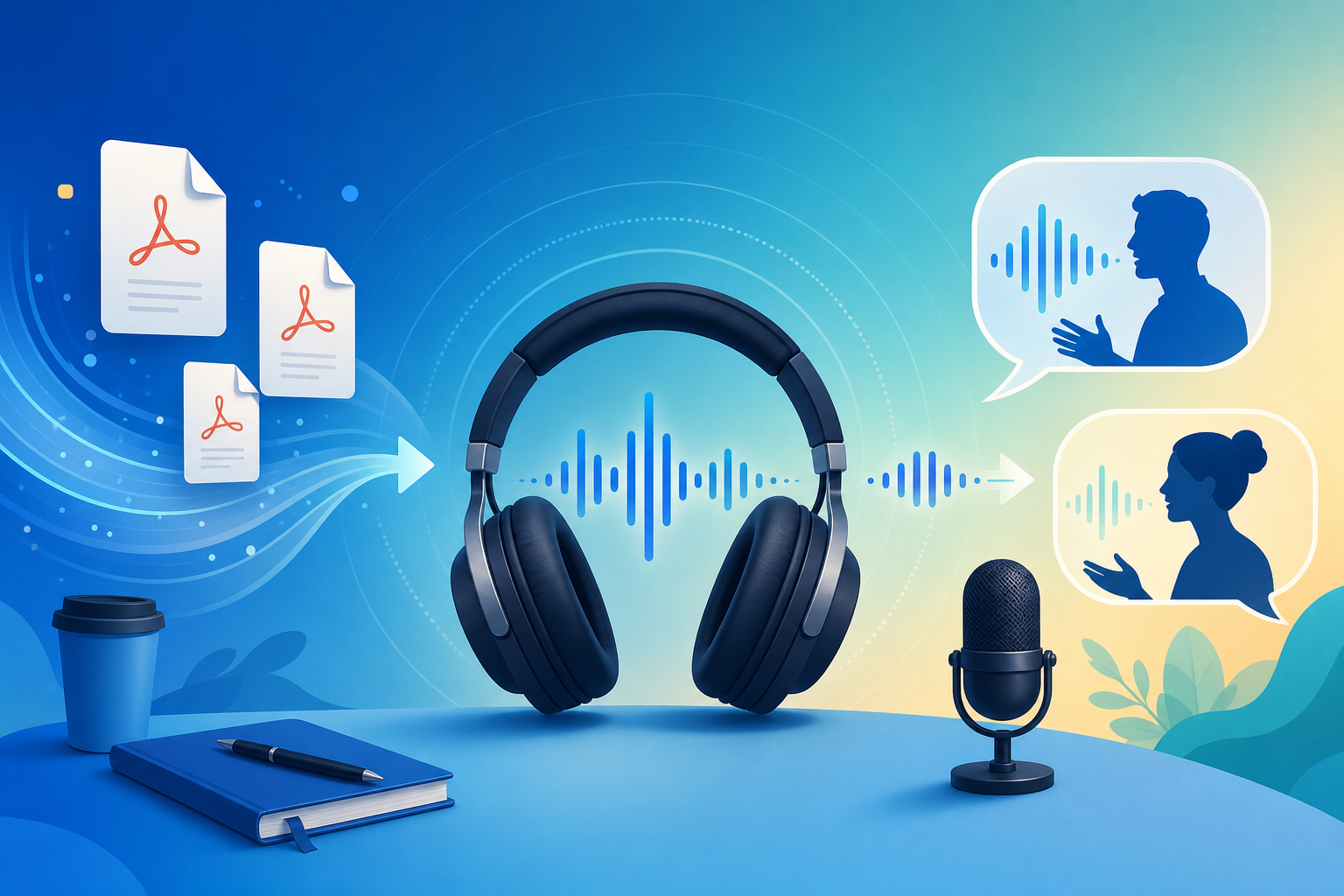
If you have already uploaded PDF papers or course materials to NotebookLM but are still reading page by page—you may be missing one of the most distinctive features of this Google AI note-taking tool: Audio Overview. It automatically transforms the source materials in your notebook into a podcast-style audio summary featuring two AI hosts in conversation, so you can keep absorbing the core knowledge in NotebookLM while commuting, working out, or doing household chores.
This article systematically covers how to generate NotebookLM Audio Overview, how Interactive Mode works, who it is best for, and practical optimization tips—helping you integrate this source-grounded AI AI research assistant into your everyday learning workflow.
What Is NotebookLM Audio Overview?
Audio Overview is NotebookLM’s built-in audio generation feature. Unlike generic TTS (text-to-speech), NotebookLM generates a structured two-person dialogue audio based on the documents you upload:
- Two AI hosts walk through document highlights through Q&A and discussion
- Content is strictly based on your source materials, not fabricated from the model’s imagination
- The tone is natural and the pacing suits continuous listening, similar to a professional podcast
- Supports Interactive Mode, allowing you to ask questions at any time while listening
For users who need to “listen their way through” long PDFs, Google Docs, or YouTube transcripts, NotebookLM Audio Overview is one of the most research- and learning-oriented AI audio tools in the Google ecosystem today.
How to Generate NotebookLM Audio Overview?
Step 1: Prepare Your Notebook and Sources
- Sign in at NotebookLM App
- Open an existing notebook, or create a new one and upload sources (PDF, Google Docs, web URLs, YouTube, and more)
- We recommend focusing each notebook on a single topic and keeping the number of sources within 20–30 to ensure focused, stable audio quality
Tip: The clearer and more complete your sources, the more accurate the NotebookLM audio overview. Prioritize uploading full PDFs with good OCR quality.
Step 2: Generate Audio Overview
- Find the Audio Overview entry on the right side or bottom of the notebook interface
- Click Generate, and NotebookLM will analyze all sources and create a podcast-style dialogue
- Generation usually takes several minutes; once complete, you can play it online directly or download it
Free-tier users have a limited number of Audio Overview generations per day (exact quotas per Google’s official documentation); AI Ultra subscribers enjoy higher quotas and enhanced model support.
Step 3: Use Interactive Mode to Deepen Understanding
NotebookLM’s Interactive Mode lets you ask the AI questions in real time while listening:
- Don’t understand a segment of the discussion? Follow up directly by voice or text
- The AI answers based on the source materials in your current notebook, with verifiable citations attached
- Ideal for clarifying doubts during your first listen, avoiding the “heard it but forgot it” trap
This feature upgrades NotebookLM from “passively listening to a podcast” to an “interactive AI learning companion”—a key advantage that sets it apart from ordinary AI summarization tools.
Who Is Audio Overview Best For?
Students and Exam Review
Upload textbook PDFs, lecture notes, and past exam walkthroughs, then generate a NotebookLM audio overview and listen repeatedly during your commute. Combined with the study guide features in our getting started tutorial, you can build a review loop of “listen first, then read—with evidence throughout.”
Researchers and Scholars
Facing dozens of papers, NotebookLM can organize core arguments, methodological differences, and conflicting conclusions into dialogue form, helping you build a global understanding in a relatively short time. You can then return to the original PDFs to verify citations on any remaining doubts—exactly where source-grounded AI delivers its value. See What Is Source-Grounded AI? for a deeper explanation.
Knowledge Workers and Content Creators
When analyzing industry reports, competitive documents, or client materials, NotebookLM Audio Overview lets you build an overall understanding in scenarios where you cannot stare at a screen, then return to your desktop to export Word/PPT reports for deeper refinement.
7 Tips to Improve NotebookLM Audio Quality
- Split notebooks by topic: Do not cram unrelated documents into the same notebook, or the audio dialogue will jump around and lose focus.
- Prioritize uploading complete PDFs: Compared to pasting URLs alone, full PDFs give NotebookLM richer context.
- Run a text Q&A first: Before generating audio, test whether the AI accurately understands your sources in the chat dialog; generate Audio Overview only after confirming.
- Make good use of Interactive Mode: Enable interaction on your first listen and clarify concepts you do not understand on the spot.
- Combine with study guide exports: Audio is best for building a big-picture view; text study guides are better for intensive pre-exam reading—the two complement each other.
- Mind your daily quota: Free users should plan generation counts wisely and prioritize your most important notebooks.
- Verify key claims: When exams or publications demand strict accuracy, always validate through citation links back to the original text.
Audio Overview vs. Traditional Reading: When to Listen with NotebookLM, When to Read?
| Scenario | Recommended Approach | Reason |
|---|---|---|
| Building global understanding, first exposure to material | NotebookLM Audio Overview | Dialogue format lowers the cognitive barrier; suited for background listening |
| Verifying details, citations, and data | Text Q&A + original PDF | Source-grounded AI citations can be checked line by line |
| Commuting, exercise, and other fragmented time | Audio Overview + Interactive Mode | Frees your eyes; ask follow-up questions anytime |
| Writing papers or formal reports | Text export + manual editing | Requires precise wording and format control |
NotebookLM’s design philosophy is not “replace reading with audio,” but rather let the AI research assistant cover more learning scenarios—you can flexibly switch between audio and text modes depending on the situation.
Synergy with Other NotebookLM Features
Audio Overview is not an isolated feature. Within Google’s AI note-taking tool ecosystem, it forms a complete workflow together with the following capabilities:
- Source-grounded AI Q&A: Every text answer includes citations, ideal for close reading and verification
- Study guide / FAQ generation: Transform the same batch of sources into structured text materials
- Gemini 3.5 upgrade: Stronger document understanding directly improves audio content quality (see NotebookLM Gemini 3.5 Upgrade Explained)
- Multi-format export: After audio builds your understanding, export PDF/Word reports for sharing or archiving
Frequently Asked Questions
Q: Does NotebookLM Audio Overview support Chinese?
A: NotebookLM generates audio in the language of your sources and interface settings. Uploading Chinese PDFs or documents typically produces Chinese dialogue content.
Q: Can free users use Audio Overview?
A: Yes. Free users have a daily generation limit; refer to Google’s latest official policy for specifics.
Q: Is the audio content reliable?
A: NotebookLM generates content based on your uploaded sources, so hallucination risk is lower than with general-purpose AI. For high-stakes scenarios such as exams or publication, we still recommend verifying key information through citation links in text Q&A.
Conclusion
NotebookLM Audio Overview extends the learning scenarios of this Google AI note-taking tool from “desktop reading” to “listen anytime,” then uses Interactive Mode to restore the ability for deep understanding. Whether you are a student, researcher, or knowledge worker, it is worth trying Audio Overview in your next notebook.
Open the NotebookLM App now, upload your first document, and generate your own AI podcast. For the full workflow, see our getting started tutorial.
Next: put this article to work
Generate an Audio or Video Overview first, then click back to the source to check key figures.
This is an unofficial NotebookLM guide, not affiliated with Google. You will open the app and can sign in free with a Google account.
Related articles
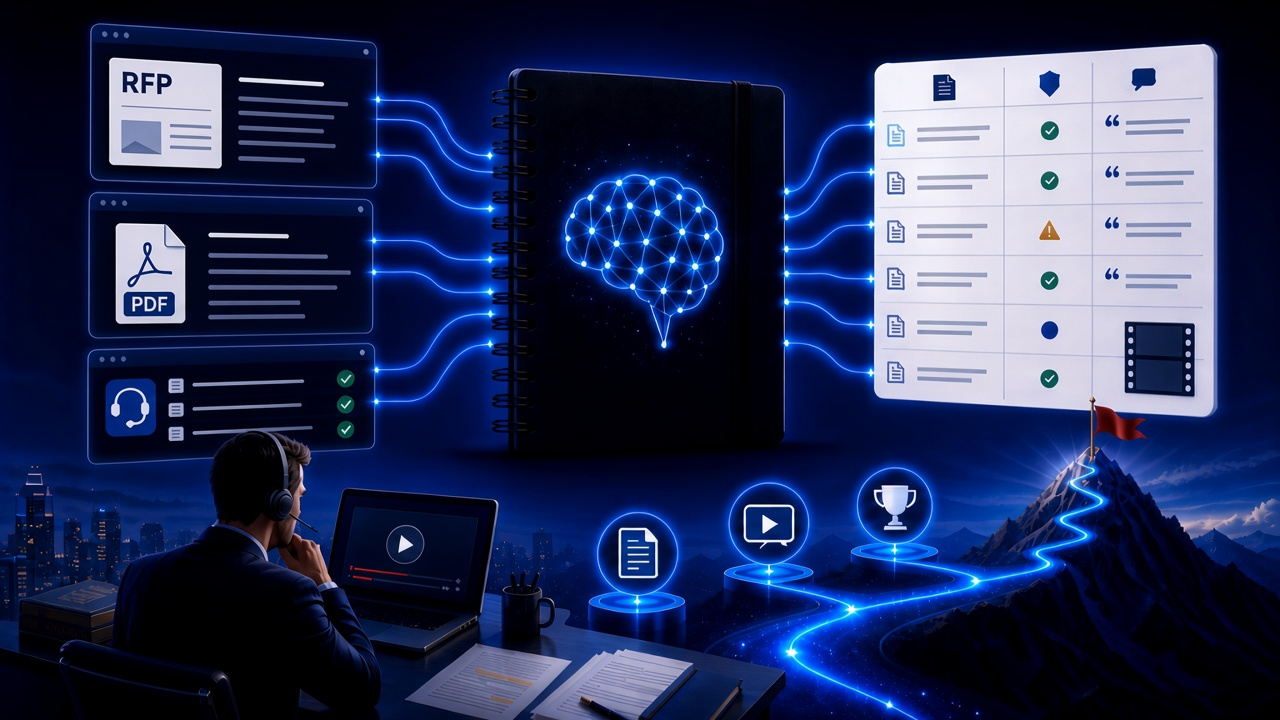
NotebookLM Consulting Knowledge Base Complete Guide: Turn RFPs, Industry Reports, and Interview Notes into a Verifiable Project Desk with Source-Grounded AI
A complete guide to consulting knowledge bases with NotebookLM—from RFPs, industry reports, and interview notes to comparison tables, gap lists, and briefing exports—helping you turn long materials into citation-verifiable project notes with Google NotebookLM, the AI note-taking tool.
Read more →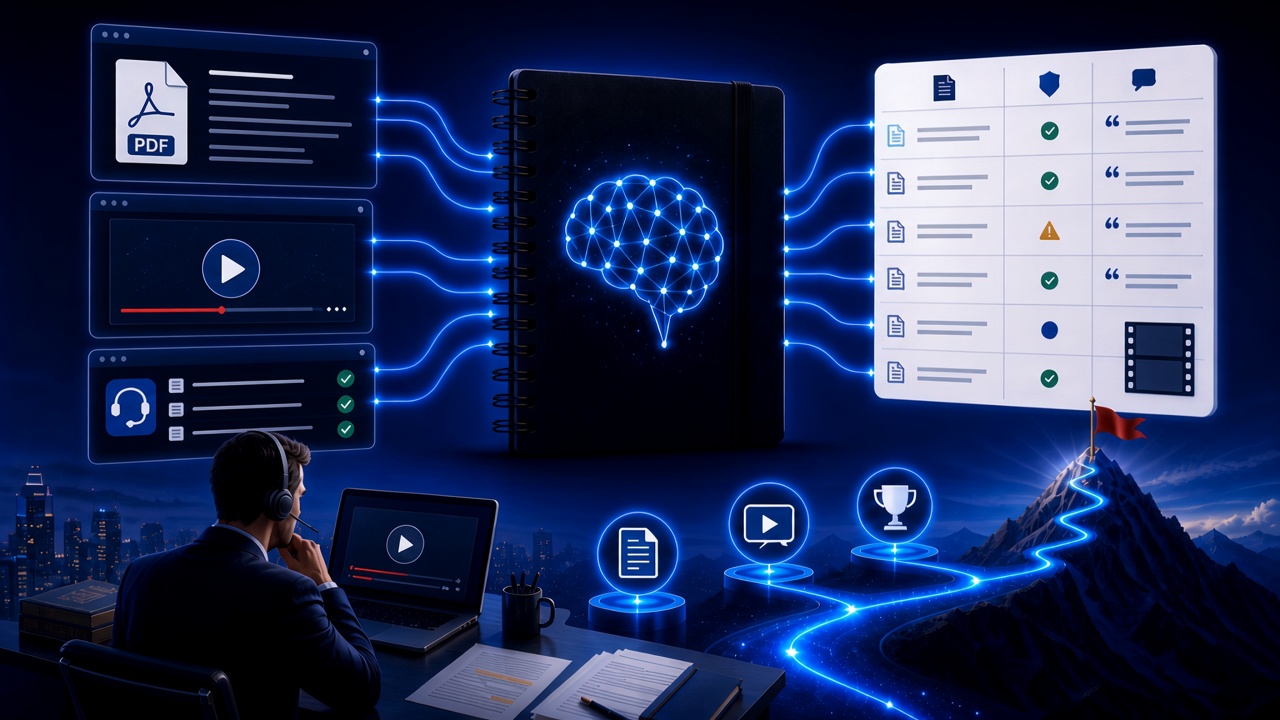
NotebookLM Language Learning Complete Guide: Turn Textbooks, Subtitles, and Vocabulary Lists into a Verifiable Listen-Speak-Read-Write Desk with Source-Grounded AI
A complete guide to language learning with NotebookLM—from textbook PDFs, subtitle scripts, and word lists to example comparisons, confusion lists, and Audio Overviews—helping you turn language materials into citation-verifiable study notes with Google NotebookLM, the AI note-taking tool.
Read more →