Blog
NotebookLM Meeting Notes & Knowledge Capture Complete Guide: Turn Discussions into Searchable Team Assets
A complete guide to organizing meeting notes and project knowledge with NotebookLM—from source archiving and source-grounded AI Q&A to briefing export and notebook sharing—helping you turn spoken discussion into a verifiable, citable knowledge base with Google's AI note-taking tool.
NotebookLM Meeting Notes & Knowledge Capture Complete Guide: Turn Discussions into Searchable Team Assets
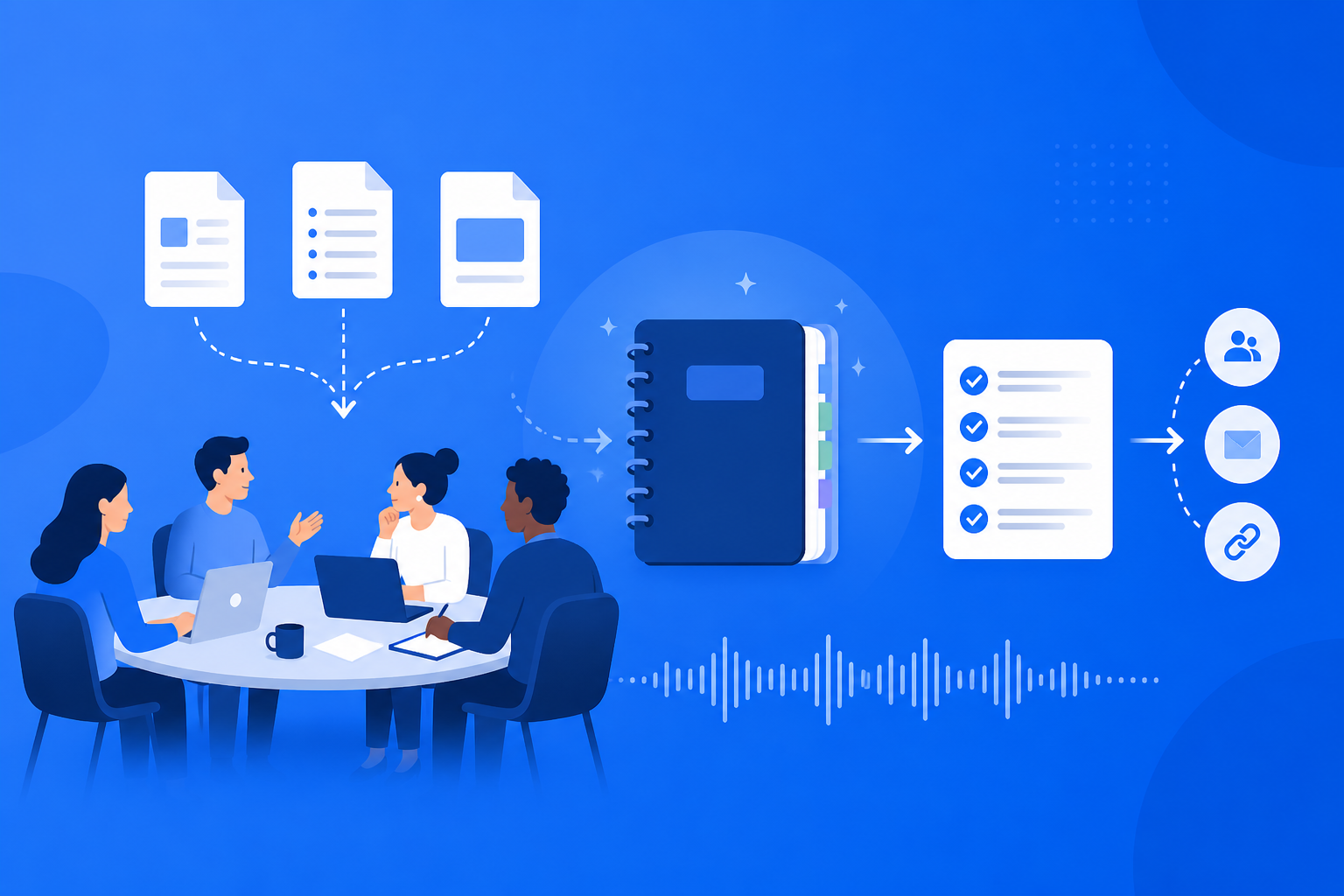
After weekly syncs, reviews, and customer interviews, notes often scatter across chat apps, temporary docs, and personal scratchpads—finding “what we actually decided” can take half an hour. Put transcripts, agendas, attachment PDFs, and related web pages into NotebookLM, and Google’s AI note-taking tool can run source-grounded Q&A on those materials: decisions, action items, and risks stay citable, so spoken discussion becomes a searchable AI research assistant knowledge asset.
This article systematically covers how to use NotebookLM for pre- and post-meeting knowledge capture, prompt templates, ideal scenarios, and team collaboration tips.
Why Capture Meetings in NotebookLM Instead of Only Saving a Notes Doc?
Traditional minutes are static text; NotebookLM makes them conversational:
- Cross-material synthesis: Ask across meeting notes + project briefs + competitor links in one notebook
- Verifiable decisions: Source-grounded AI answers include citations, reducing “I think someone said…” disputes
- Extractable actions: Use prompts to pull to-do / owner / due-date lists
- Reusable outputs: Generate briefings, Study Guides, or share the notebook with absentees
This is especially valuable for project teams, consulting delivery, and cross-functional work.
How to Close the Meeting Knowledge Loop with NotebookLM?
Step 1: Create the Notebook Before the Meeting; Archive Sources After
- Sign in at the NotebookLM App
- Create a notebook per project or recurring meeting series (e.g., “Product Weekly 2026-Q3”)—avoid dumping every meeting into one notebook
- After the meeting, upload: notes docs, audio transcripts, slide PDFs, related pages; video call recordings can be added as YouTube/links (see multi-source management and the YouTube learning guide)
Tip: Redact before upload—remove salaries, secrets, and unreleased customer data; name sources with dates so citations are easy to locate.
Step 2: Extract Decisions and Action Items with Structured Prompts
- “List the explicit decisions from this meeting, with a citation for each”
- “Output a table: Action item | Owner | Due date | Supporting paragraph”
- “Which topics lacked consensus? What were each side’s views?”
For prompt patterns, see prompting tips; always click citations when checking key numbers (principles in Source-Grounded AI Explained).
Step 3: Export, Share, and Keep Rolling Updates
- When you need to report upward, generate a briefing and export
- Absentees can catch up via a mind map or Audio Overview
- Use notebook sharing for the project group; keep appending sources after each sync so the knowledge base grows continuously
That way NotebookLM becomes the project’s “continuous memory,” not a one-off chat log.
Who Benefits Most from NotebookLM Meeting Capture?
Product & Project Managers
After weekly syncs, reviews, and planning meetings, use NotebookLM to lock scope changes and risk discussions—so verbal commitments don’t drift in execution.
Consultants & Customer Success
Keep interview recordings and notes in one library, generate pain-point lists and follow-up questions, then export a briefing as a delivery draft.
Teaching & Research Groups
Store seminar remarks alongside literature notes so you can ask “did last week’s methodology critique get a literature response yet?” and connect to exam-prep / review workflows.
7 Tips to Improve NotebookLM Meeting Capture Quality
- One notebook per meeting series, or one per project: Keep themes clean so Q&A doesn’t mix meetings.
- Archive within 24 hours: Fill fuzzy decisions while memory is fresh; fix transcript errors promptly.
- Write structured notes: Separate decisions / actions / risks so source-grounded AI extracts cleanly.
- Ask for decisions first, then action items: Avoid treating discussion opinions as final calls.
- Contrast conflicting views explicitly: Require “pro / con + citation” to reduce post-meeting debate.
- Isolate sensitive notebooks’ permissions: Share redacted copies externally.
- Lean on Gemini 3.5: More stable for long transcripts and multi-attachment synthesis (see Gemini 3.5 upgrade explained).
NotebookLM Meeting Capture vs Traditional Minutes vs Generic AI: How to Choose?
| Scenario | Recommended approach | Why |
|---|---|---|
| Need verifiable extraction from real meeting materials | NotebookLM source-grounded Q&A | Citations are traceable—good for accountability and alignment |
| Only need to archive a formal minutes doc | Docs tool + template | Simple process, but no smart follow-up questions |
| Open brainstorming with no meeting materials | Generic AI | Not bound to sources—unsuitable as a decision record |
| Help absentees catch up quickly | NotebookLM Audio Overview / mind map | Lower replay cost |
NotebookLM’s value is turning meetings from “we held it” into searchable and handoff-ready.
Synergy with Other NotebookLM Features
Meeting capture is a workflow chain:
- Multi-source management / YouTube: Ingest agendas, attachments, and recordings
- Strong prompting: Extract decisions and action items
- Study Guide: Turn recurring business concepts into FAQs for newcomers
- Mind map / Audio Overview: Structural browsing and on-the-go catch-up
- Briefing export / sharing & collaboration: Upward reporting and lateral alignment
- Gemini 3.5: Better understanding of long meetings
FAQ
Q: Can I use NotebookLM with only chat logs and no formal minutes?
A: Yes—clean them into a document and upload; manually mark “confirmed decisions” first so small talk isn’t treated as conclusions.
Q: What if the audio transcript is inaccurate?
A: Manually proofread names, numbers, and conclusions before asking; or tell the AI to “flag places where the source is unclear.”
Q: How often should I update a project notebook?
A: Append sources after every relevant meeting; regenerate briefings at milestones so external narratives stay consistent.
Summary
NotebookLM meeting notes & knowledge capture turns Google’s AI note-taking tool into a team’s continuous memory layer: sources are archivable, decisions verifiable, actions extractable, and absentees can catch up. Whether project management, client delivery, or academic seminars, source-grounded AI research assistants are worth using to turn discussion into long-term assets.
Open the NotebookLM App now and create your first meeting notebook for an active project; for the basics, see our getting started tutorial.
Next: put this article to work
Upload a PDF you are reading, ask source-grounded questions, and check citations.
This is an unofficial NotebookLM guide, not affiliated with Google. You will open the app and can sign in free with a Google account.
Related articles
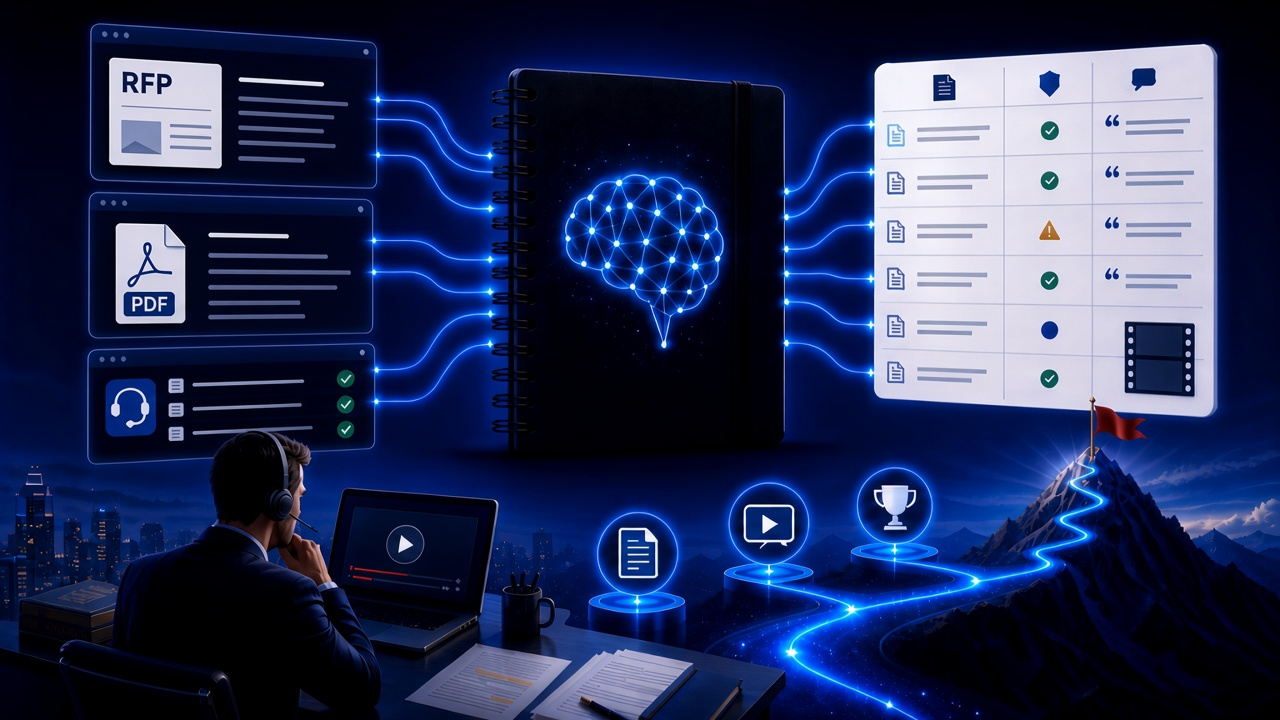
NotebookLM Consulting Knowledge Base Complete Guide: Turn RFPs, Industry Reports, and Interview Notes into a Verifiable Project Desk with Source-Grounded AI
A complete guide to consulting knowledge bases with NotebookLM—from RFPs, industry reports, and interview notes to comparison tables, gap lists, and briefing exports—helping you turn long materials into citation-verifiable project notes with Google NotebookLM, the AI note-taking tool.
Read more →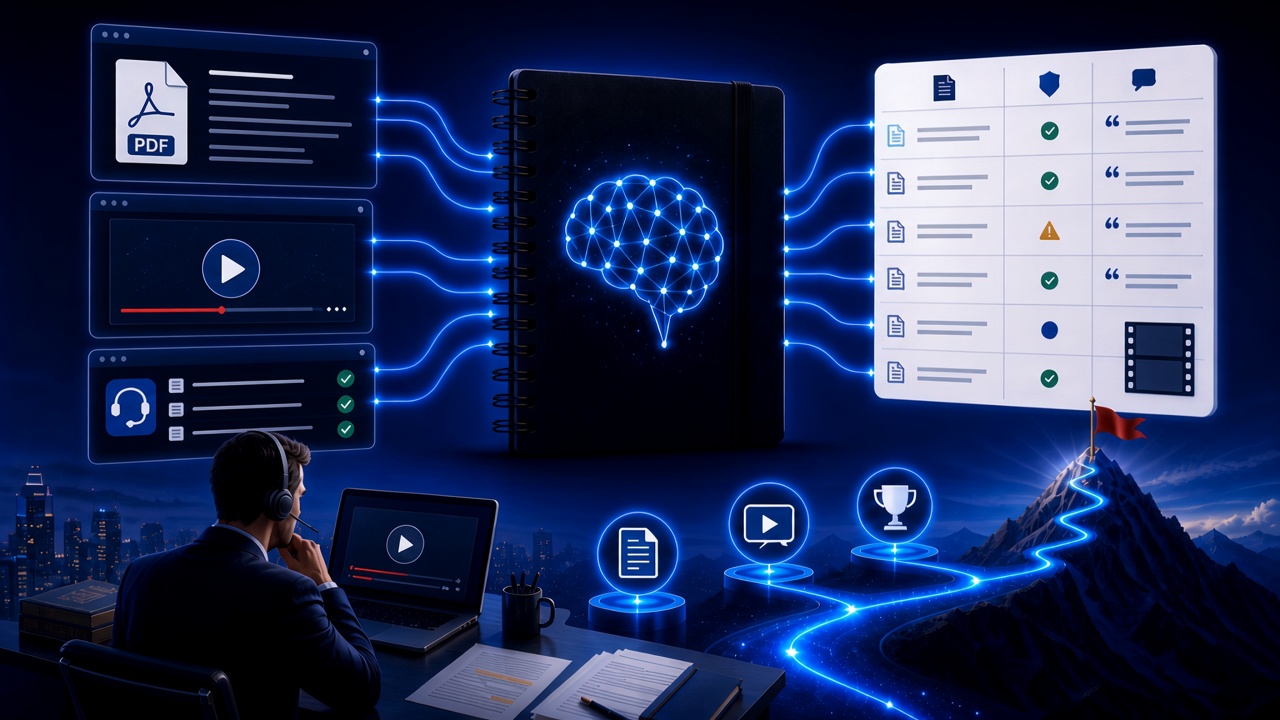
NotebookLM Language Learning Complete Guide: Turn Textbooks, Subtitles, and Vocabulary Lists into a Verifiable Listen-Speak-Read-Write Desk with Source-Grounded AI
A complete guide to language learning with NotebookLM—from textbook PDFs, subtitle scripts, and word lists to example comparisons, confusion lists, and Audio Overviews—helping you turn language materials into citation-verifiable study notes with Google NotebookLM, the AI note-taking tool.
Read more →