Blog
NotebookLM Mind Map Complete Guide: Visualize Document Knowledge into an Explorable Knowledge Graph
A complete guide to NotebookLM Mind Map—from generation steps and node exploration to synergy with Study Guide—helping you turn PDFs and papers into a visualized knowledge structure with verifiable citations using Google's AI note-taking tool.
NotebookLM Mind Map Complete Guide: Visualize Document Knowledge into an Explorable Knowledge Graph
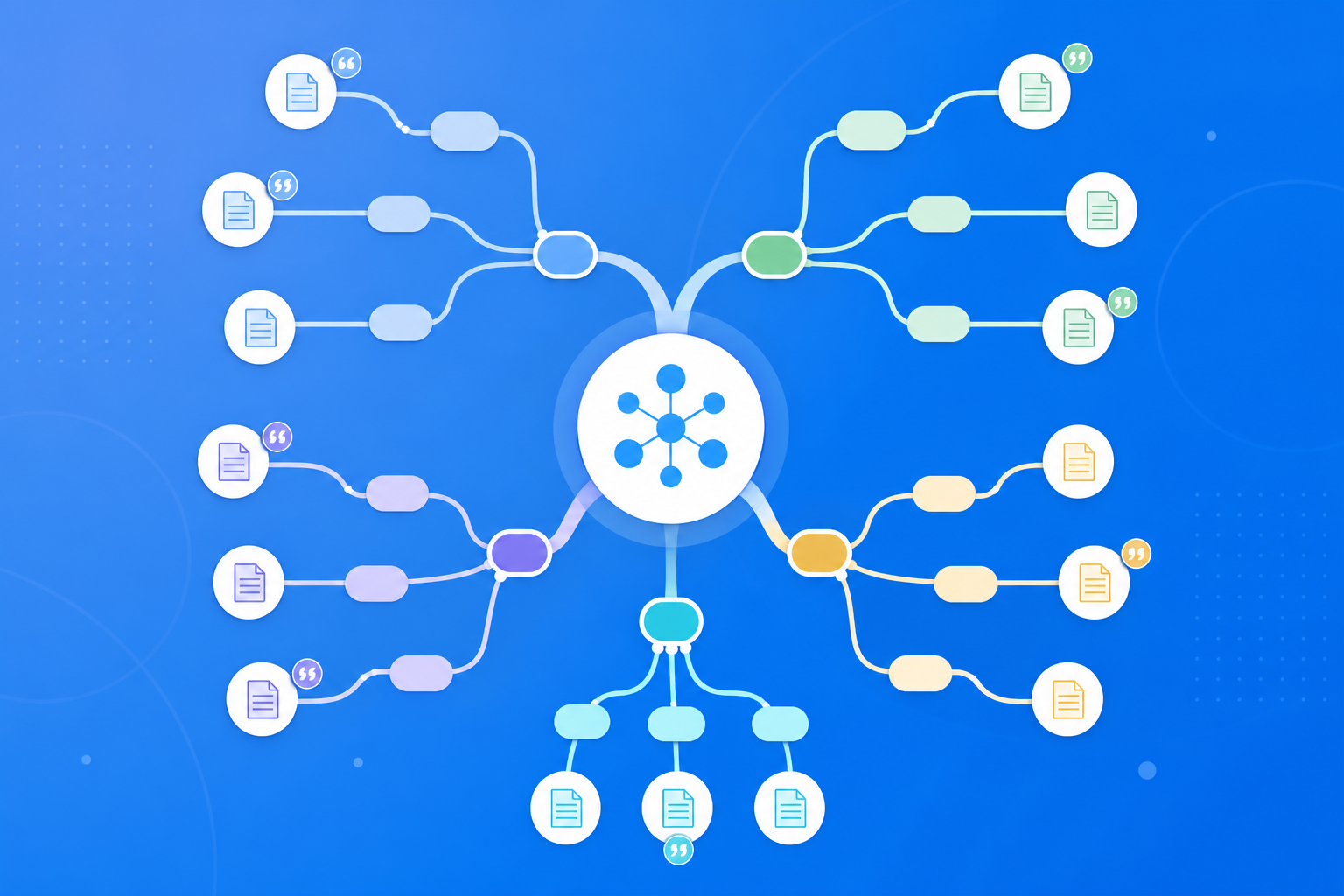
Facing a thick stack of PDF papers or lecture notes, linear reading often fails to reveal “relationships between concepts.” NotebookLM Mind Map automatically organizes the source materials in your notebook into a clickable, expandable knowledge tree: radiating from a central theme into subtopics, related concepts, and argument branches—with every node anchored to source-grounded, verifiable content. For learners who prefer to “see the structure first, then drill into details,” this is one of the most distinctive visualization capabilities in Google’s AI note-taking tool.
This article systematically covers how to generate NotebookLM Mind Maps, exploration techniques, use cases, and optimization tips—helping you extend NotebookLM from text Q&A into structured visual learning.
What Is NotebookLM Mind Map?
Mind Map is a visualization output feature in NotebookLM Studio. Unlike generic drawing tools that “invent a mind map from scratch,” NotebookLM strictly generates nodes based on the sources you upload:
- Central theme: Summarizes the notebook’s core topic
- Branch nodes: Logically split into subtopics, concepts, methods, or conclusions
- Clickable exploration: Expand nodes to drill deeper, or follow up in the chat dialog
- Source-grounded basis: The structure comes from your PDFs, web pages, or video transcripts—not model fabrication
This makes Mind Map the “map layer” of a source-grounded AI research assistant: Study Guide favors text-based self-testing, Audio Overview favors auditory absorption, and Mind Map favors seeing the global structure at a glance.
How to Generate and Use NotebookLM Mind Map?
Step 1: Prepare a Topic-Focused Notebook
- Sign in to the NotebookLM app
- Confirm sources are uploaded and the topic is singular (see the multi-source management guide)
- We recommend running 2–3 test Q&A rounds with prompting tips first to confirm the AI understands your materials correctly
Tip: The messier your sources, the more Mind Map branches tend to “scatter and lose focus.” Keeping one notebook to a single exam unit or research subtopic works best.
Step 2: Generate a Mind Map in Studio
- Open the Studio panel on the right side of the notebook and find the Mind Map entry
- Click Generate—NotebookLM will analyze all sources and build a visual knowledge tree
- Once generated, browse outward from the center node: click branches to expand child nodes and locate the concept clusters you care about most
If you need text-based review materials, generate a Study Guide in parallel; for commute listening, generate an Audio Overview.
Step 3: Deepen Node Understanding with Q&A
- For unfamiliar nodes, return to the chat and ask “Please explain this node and provide original-text citations”
- Use citation links to verify related definitions and data (see Source-Grounded AI Explained for the principles)
- Once the structure is clear, export a Briefing Doc as a presentation draft
This workflow turns NotebookLM into a complete AI learning loop of “view map → ask → verify → output.”
Who Is Mind Map Best For in NotebookLM?
Students and Course Onboarding
At the start of a term or a new chapter, generate a Mind Map first to build a knowledge skeleton, then closely read textbook PDFs by branch. It is easier to grasp the main thread than reading page by page from the start, and it helps you map against exam topics.
Researchers and Literature Reviews
Put multiple papers into the same topic notebook and use Mind Map to observe how “methods—results—limitations” cluster. Quickly spot research gaps and conflicts, then ask deeper questions against specific nodes.
Knowledge Workers and Training Design
Visualize product docs, policy manuals, or training materials as an onboarding map or internal-training outline for new hires; then manually refine terminology before exporting and sharing.
7 Tips to Improve NotebookLM Mind Map Quality
- Split notebooks by subtopic: One map should correspond to one clear issue—avoid cramming a full semester of materials onto a single map.
- Prioritize complete full-text PDFs: With richer context, node naming and hierarchy are more reasonable.
- Warm up with Q&A before generating: Confirm there are no serious misunderstandings before producing the map, reducing erroneous branches.
- Macro first, micro second: Scan the center and first-level branches first, then drill into second-level nodes.
- Ask when a node is unclear: Mind Map is navigation; chat and citations are close reading.
- Complement with Study Guide: Use the map for structure; use FAQ/glossaries for detail and self-testing.
- Leverage Gemini 3.5 understanding: For long documents and complex topics, structural summarization is usually more stable (see the Gemini 3.5 upgrade guide).
Mind Map vs. Study Guide vs. Hand-Drawn Maps: When to Use NotebookLM?
| Scenario | Recommended Approach | Reason |
|---|---|---|
| Quickly build a global knowledge structure | NotebookLM Mind Map | Auto-layered and anchored to sources |
| Pre-exam self-testing and term memorization | NotebookLM Study Guide | FAQ/glossaries are better for drills |
| Personalized creative brainstorming with no source constraints | Hand-drawn maps or general-purpose AI | Unconstrained by sources; suited for divergent thinking |
| Verifying definitions and data | Map localization + source-grounded AI Q&A | Visual navigation with verifiable citations |
NotebookLM Mind Map’s role is to automatically grow an explorable knowledge map from your materials, not to replace every hand-drawn creative exercise.
Synergy with Other NotebookLM Features
Mind Map sits in the “structural understanding” stage and forms a closed loop with other capabilities:
- Multi-source management: Clear sources determine whether the map is trustworthy
- Quality prompting: Follow up on nodes to turn the map into deep research
- Study Guide / Audio Overview: Structure → close reading → listening for multi-sensory reinforcement
- Briefing export: After the map clarifies the logic, generate a shareable report
- Gemini 3.5: Stronger document understanding improves node quality and hierarchy reasonableness
Frequently Asked Questions
Q: Does NotebookLM Mind Map support Chinese?
A: After uploading Chinese PDFs or documents, node titles and branches are often in Chinese; specifics depend on the interface and source language.
Q: Can I export the Mind Map as an image?
A: Follow the product’s current capabilities; even if high-resolution export is not yet available, you can screenshot for archiving, or write structural takeaways into exported Word/PDF reports.
Q: What if the map does not match the sources?
A: Ask in chat to “point out the original-text location corresponding to this node,” verify with citations; if needed, slim down sources and regenerate.
Conclusion
NotebookLM Mind Map gives Google’s AI note-taking tool the ability to “grasp knowledge structure at a glance,” an important visual-learning complement for the source-grounded AI research assistant. Whether you are a student, researcher, or knowledge worker, it is worth generating a Mind Map to set your course before finishing the full text.
Open the NotebookLM app now and generate your first Mind Map in a topic notebook; for the full workflow, see our getting started tutorial.
Next: put this article to work
Upload a PDF you are reading, ask source-grounded questions, and check citations.
This is an unofficial NotebookLM guide, not affiliated with Google. You will open the app and can sign in free with a Google account.
Related articles

NotebookLM Consulting Knowledge Base Complete Guide: Turn RFPs, Industry Reports, and Interview Notes into a Verifiable Project Desk with Source-Grounded AI
A complete guide to consulting knowledge bases with NotebookLM—from RFPs, industry reports, and interview notes to comparison tables, gap lists, and briefing exports—helping you turn long materials into citation-verifiable project notes with Google NotebookLM, the AI note-taking tool.
Read more →
NotebookLM Language Learning Complete Guide: Turn Textbooks, Subtitles, and Vocabulary Lists into a Verifiable Listen-Speak-Read-Write Desk with Source-Grounded AI
A complete guide to language learning with NotebookLM—from textbook PDFs, subtitle scripts, and word lists to example comparisons, confusion lists, and Audio Overviews—helping you turn language materials into citation-verifiable study notes with Google NotebookLM, the AI note-taking tool.
Read more →