Blog
NotebookLM Multi-Source Management Complete Guide: Efficient PDF, YouTube, and Web URL Uploads
A complete guide to NotebookLM source upload and management—from PDF, YouTube, and web URLs to Google Docs—helping you build high-quality, verifiable research notebooks with Google's AI note-taking tool.
NotebookLM Multi-Source Management Complete Guide: Efficient PDF, YouTube, and Web URL Uploads
The quality of NotebookLM’s AI answers depends 80% on whether your uploaded sources are clear, complete, and topic-focused. Many users complain that “AI answers are inaccurate”—but the root cause is often not the model itself, but messy sources, poor PDF scan quality, or stuffing unrelated web pages into the same notebook. Mastering multi-source management is the first step to unlocking the full power of this Google AI note-taking tool and source-grounded AI research assistant.
This article systematically covers the source types NotebookLM supports, upload methods, notebook organization strategies, and optimization tips—helping you build a high-quality, verifiable NotebookLM research workflow.
What Source Types Does NotebookLM Support?
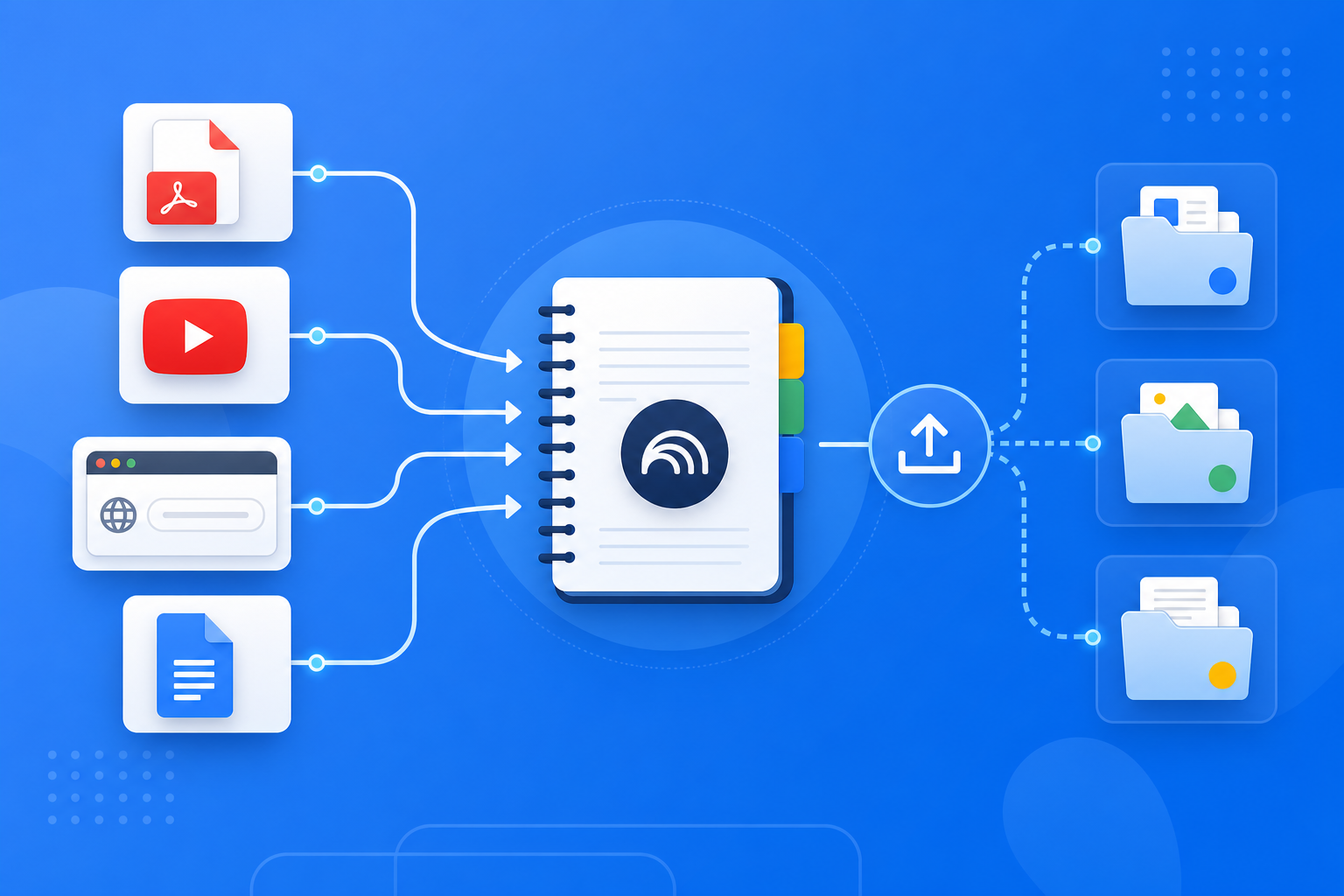
As Google’s AI note-taking tool, NotebookLM currently supports several common research material formats:
- PDF files: Papers, textbooks, reports—drag and drop to upload or import from Google Drive
- Google Docs / Slides: Link cloud documents directly with automatic sync on updates
- Web URLs: Paste article, blog, or news links—NotebookLM fetches the main body content
- YouTube videos: Automatically retrieves video transcripts—ideal for courses and talks
- Pasted text: Quickly import excerpted passages or meeting notes
All sources become the sole basis for NotebookLM Q&A, Study Guides, and Audio Overviews—this is the fundamental difference between source-grounded AI and generic AI.
How to Upload and Manage NotebookLM Sources Efficiently?
Step 1: Create a Topic-Focused Notebook
- Log in to the NotebookLM app
- Create a notebook around a single research topic (e.g., “2026 Machine Learning Final Review” or “Competitor A Industry Analysis”)
- Avoid “catch-all notebooks”—sources within one notebook should serve the same goal; aim for 15–30 sources per notebook
Tip: NotebookLM understands topic-focused notebooks more accurately; too many sources cause AI answers to jump around and citations to scatter.
Step 2: Upload Sources by Priority
- Prioritize full PDFs: Compared to web summaries, complete PDFs provide richer context and precise citation anchors
- Supplement with YouTube and URLs: Use these for the latest updates, talk insights, or quick web news
- Check upload status: Confirm each source shows “Processed” before asking questions or generating Studio content
Removing ad pages and irrelevant appendices from PDFs before upload significantly improves NotebookLM citation accuracy.
Step 3: Verify Source Quality Before Deep Use
After uploading, run 2–3 test questions in the chat dialog:
- “Please list the core topics across all sources”
- “What are the main conclusions of the 3rd PDF?”
- Check whether answers include clickable citations pointing to the correct passages
Once confirmed, generate Study Guides or Audio Overviews or export reports—avoid batch-generating incorrect content when sources are flawed.
Who Benefits Most from Multi-Source Management in NotebookLM?
Students and Course Review
Upload textbook PDFs, classroom YouTube recordings, and course web pages together—NotebookLM can synthesize answers across formats. Follow the steps in our getting started tutorial to quickly build a semester review notebook.
Researchers and Literature Reviews
Upload dozens of paper PDFs and split them into multiple notebooks by subtopic (e.g., “Methodology,” “Experimental Results,” “Related Work”). Then apply the citation verification approach in Source-Grounded AI Explained to ensure every review claim is backed by evidence.
Knowledge Workers and Competitive Analysis
Centralize competitor websites, industry report PDFs, and product launch YouTube videos—NotebookLM helps you compare feature differences and market positioning across sources, then export Word reports for team discussion.
7 Tips to Improve NotebookLM Source Quality
- Split notebooks by subtopic: Do not cram an entire semester’s subjects or an entire industry’s materials into one notebook.
- Prioritize OCR-clear PDFs: Blurry scans and PDFs missing a text layer severely hurt NotebookLM citation accuracy.
- Choose YouTube videos with subtitles: Higher transcript quality means more accurate NotebookLM understanding.
- Confirm web URLs are accessible: Paywalled or login-required content may not be fully captured.
- Regularly remove outdated sources: Delete revised or expired documents to keep your notebook current.
- Standardize source naming: Rename PDFs after upload for easy identification in citations.
- Split large files before upload: PDFs over 200 pages can be split by chapter to improve processing speed and Q&A precision.
Multi-Source Management vs. Bookmarks vs. Generic AI: When to Use NotebookLM?
| Scenario | Recommended Approach | Why |
|---|---|---|
| Cross-format Q&A across PDFs, videos, and web pages | NotebookLM multi-source notebook | Source-grounded AI indexes uniformly; answers include citations |
| Temporarily saving web links | Browser bookmarks | Quick to save, but no AI Q&A or synthesis |
| Open-ended questions without documents | Generic AI (e.g., ChatGPT) | Good for creative brainstorming, not citation verification |
| Close reading and annotation of a single PDF | PDF reader + NotebookLM | Reader for markup; NotebookLM for cross-document synthesis |
NotebookLM’s value lies in turning scattered research materials into a unified, conversational, citable, exportable knowledge base.
Synergy with Other NotebookLM Features
Source management is the foundation—other capabilities complete the workflow:
- Source-grounded AI Q&A: Every answer is strictly based on uploaded sources, with verifiable citations
- Study Guide / Audio Overview: Higher source quality means more accurate generated content (see Study Guide tips and Audio Overview guide)
- Gemini 3.5 Smart Discovery: Recommends relevant web sources from conversations to automatically expand your notebook (see Gemini 3.5 upgrade explained)
- Multi-format export: After synthesizing multi-source analysis, export PDF/Word reports for sharing or archiving
Frequently Asked Questions
Q: How many sources can a single NotebookLM notebook hold?
A: Specific limits follow Google’s latest official policy. In practice, we recommend keeping 15–30 high-quality sources to ensure focused AI answers and precise citations.
Q: Can I upload YouTube videos without subtitles?
A: Yes, but NotebookLM relies on automatic transcription. Videos without subtitles or with poor audio quality may produce lower-quality transcripts, affecting Q&A accuracy.
Q: If I find an error in a source after uploading, do I need to regenerate everything?
A: After deleting or replacing the faulty source, regenerate Study Guides and Audio Overviews; for existing Q&A, ask follow-up corrective questions on specific points.
Conclusion
NotebookLM multi-source management is the foundation of a high-quality AI research notebook—clear sources, focused topics, and diverse formats ensure that Q&A, guides, and audio deliver maximum value. Whether you are a student, researcher, or knowledge worker, it is worth investing time to optimize the source structure of your first notebook.
Open the NotebookLM app now, create a topic-focused notebook, and upload your first batch of PDFs and links; for the full workflow, see our getting started tutorial.
Next: put this article to work
Upload a PDF you are reading, ask source-grounded questions, and check citations.
This is an unofficial NotebookLM guide, not affiliated with Google. You will open the app and can sign in free with a Google account.
Related articles

NotebookLM Consulting Knowledge Base Complete Guide: Turn RFPs, Industry Reports, and Interview Notes into a Verifiable Project Desk with Source-Grounded AI
A complete guide to consulting knowledge bases with NotebookLM—from RFPs, industry reports, and interview notes to comparison tables, gap lists, and briefing exports—helping you turn long materials into citation-verifiable project notes with Google NotebookLM, the AI note-taking tool.
Read more →
NotebookLM Language Learning Complete Guide: Turn Textbooks, Subtitles, and Vocabulary Lists into a Verifiable Listen-Speak-Read-Write Desk with Source-Grounded AI
A complete guide to language learning with NotebookLM—from textbook PDFs, subtitle scripts, and word lists to example comparisons, confusion lists, and Audio Overviews—helping you turn language materials into citation-verifiable study notes with Google NotebookLM, the AI note-taking tool.
Read more →