Blog
NotebookLM Briefing Doc & Report Export Complete Guide: Turn Research Notes into Shareable Deliverables
A complete guide to NotebookLM Briefing Doc and multi-format report export—from generation steps and use cases to Word/PDF export tips—helping you produce professional, verifiable reports with Google's AI note-taking tool.
NotebookLM Briefing Doc & Report Export Complete Guide: Turn Research Notes into Shareable Deliverables
You have finished reading literature and cross-document Q&A in NotebookLM, and your notebook is full of insights—the next step is often turning your research into a shareable report. Many users stop at chat-based Q&A and overlook the Briefing Doc and multi-format export capabilities in the Studio panel. These two features can transform the analysis from your source-grounded AI research assistant into well-structured Word, PDF, or presentation documents with citations in just a few clicks.
This article systematically covers how to generate NotebookLM Briefing Docs, the report export workflow, ideal use cases, and optimization tips—helping you upgrade NotebookLM from a personal reading tool to a deliverable output platform.
What Is NotebookLM Briefing Doc & Report Export?
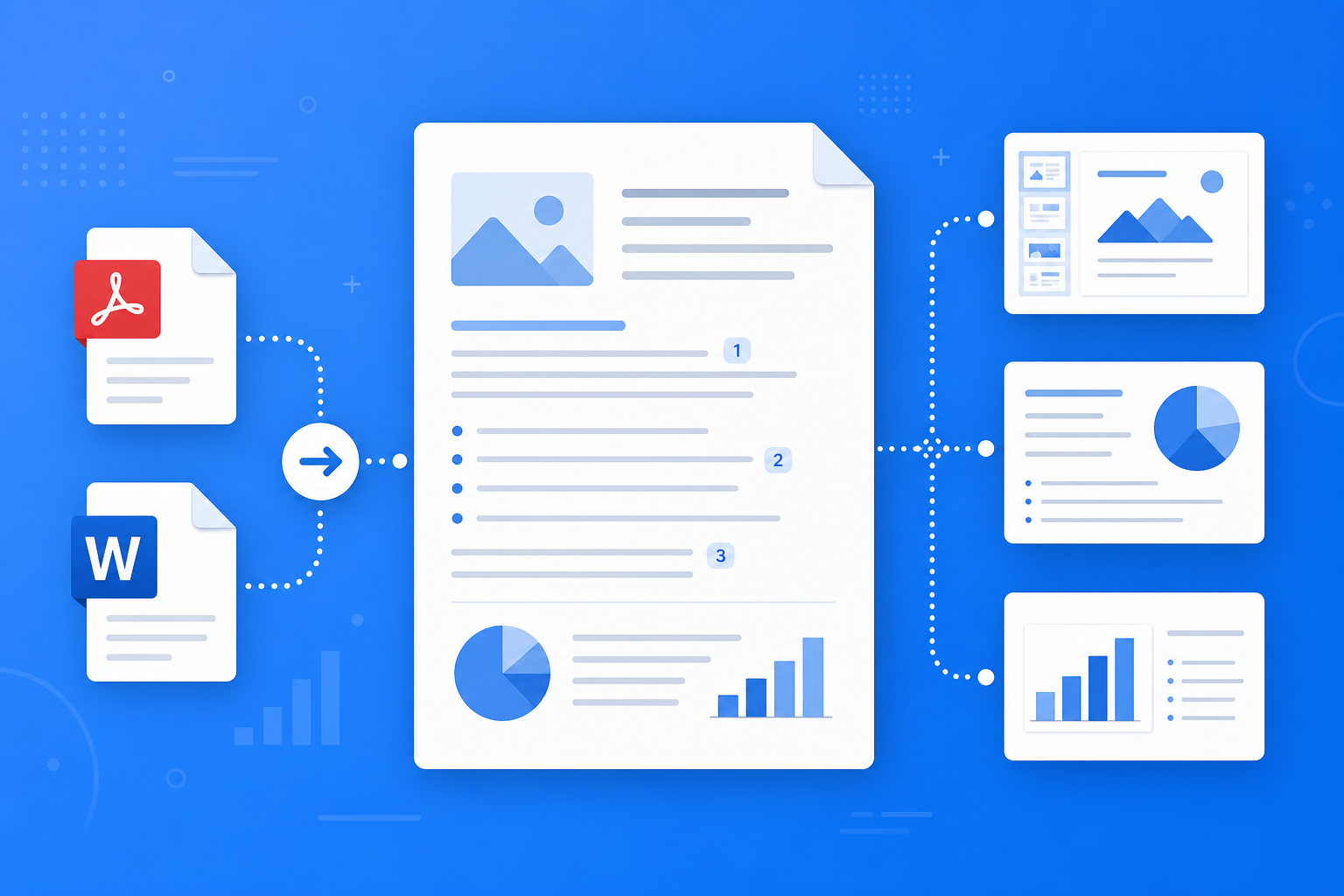
Briefing Doc is a structured output feature in NotebookLM Studio. Based on all sources in your notebook, it automatically generates a clear research briefing that typically includes:
- Executive summary: A one-page overview of core findings and conclusions
- Thematic sections: Arguments organized by logical structure, each with source citations
- Key data and claims: Important information extracted from PDFs, web pages, or videos
- Editable draft: After generation, serves as the foundation for Word or PPT reports—polish and finalize with minimal effort
Combined with multi-format export (PDF, Word, Google Docs, and more), NotebookLM lets you turn research accumulated in this Google AI note-taking tool into formal, team-readable documents without starting from scratch on layout.
How to Generate a NotebookLM Briefing Doc and Export a Report?
Step 1: Ensure Sources and Q&A Are Ready
- Sign in at the NotebookLM App
- Confirm all notebook sources are uploaded and the topic is focused (see the multi-source management guide)
- Complete 3–5 rounds of key Q&A in the chat panel first to verify the AI understands your materials accurately
Tip: Source quality and topic focus directly determine how professional your Briefing Doc will be; cluttered sources lead to loose structure and disjointed arguments.
Step 2: Generate the Briefing Doc
- In the notebook Studio panel, find the “Briefing Doc” entry
- Click “Generate”—NotebookLM will synthesize all sources into a structured briefing
- Preview the result in the interface and check that section logic and citations point to the correct sources
If you need more review-oriented structured materials, you can also generate a Study Guide; for an audio overview, generate an Audio Overview.
Step 3: Export and Polish the Final Report
- At the Briefing Doc or chat result, select Export
- Choose PDF (read-only sharing), Word (editable final draft), or sync to Google Docs as needed
- After export, do final polishing locally or in the cloud: unify terminology, add charts, adjust formatting, then publish formally
When publishing externally or citing academically, always verify key data by following citation links in the briefing back to the original sources—this is an essential closing step in the source-grounded AI workflow.
Who Is Briefing Doc & Report Export Best For?
Students and Course Assignments
Generate a briefing from course reading materials, export to Word, add your own analysis, and use it as a book report or group presentation draft. Combined with the getting started tutorial, you can complete the full workflow from upload to export quickly.
Researchers and Project Presentations
After completing a literature review, use NotebookLM to generate a Briefing Doc as the skeleton for lab meetings or proposal presentations—with citations you can verify one by one. See citation verification methods in Source-Grounded AI Explained.
Knowledge Workers and Business Analysis
After competitive research or industry scans, export a PDF briefing for team circulation, or expand it in Word into a full market analysis report—dramatically shortening the path from research to finished document.
7 Tips to Improve NotebookLM Briefing & Export Quality
- Q&A first, briefing second: Clarify core questions in chat before generating the briefing to avoid reports that miss your real needs.
- Keep notebook topics single-focused: One briefing per clear topic—do not mix multi-project materials in the same notebook.
- Prioritize high-quality PDF sources: Full text supports professional briefings better than web page snippets (see the source management guide).
- Export Word, not just PDF: When you need to edit further, Word format preserves better modifiability.
- Human polish is essential: The briefing is a high-quality draft—proofread data, unify wording and formatting before external publication.
- Use citation links for verification: For key numbers and conclusions, click citations to confirm against the original text and avoid misquoting.
- Leverage Gemini 3.5 capabilities: After the upgrade, document understanding and report structure are improved (see the Gemini 3.5 upgrade guide).
Briefing Export vs. Handwritten Reports vs. Generic AI: When to Use NotebookLM?
| Scenario | Recommended Approach | Reason |
|---|---|---|
| Produce citable reports from your own documents | NotebookLM Briefing + Export | Source-grounded AI with verifiable citations, auto-generated structure |
| Write creative copy from scratch with no source basis | Generic AI (e.g., ChatGPT) | Suited for writing without source constraints |
| Fine layout and brand-customized documents | Briefing export to Word + local editing | NotebookLM produces the draft, you refine formatting |
| Quick verbal communication, listening on the go | Audio Overview | Reports for written sharing, audio for personal preview |
NotebookLM’s role is to shorten the path from reading to finished document, not to fully replace professional layout and final review.
Synergy with Other NotebookLM Features
Briefing and export sit at the “output” end of the research workflow and connect closely with:
- Multi-source management: High-quality sources are the prerequisite for professional briefings
- Source-grounded AI Q&A: Insights from chat can guide what the briefing should emphasize
- Study Guide / Audio Overview: Review guides and presentation briefings can be generated in parallel for different scenarios
- Gemini 3.5 upgrade: Stronger long-document understanding directly improves briefing completeness and logic
Frequently Asked Questions
Q: Does NotebookLM Briefing Doc support non-English languages?
A: After uploading sources in your target language, NotebookLM can usually generate briefings in that language—exact behavior depends on the interface and source language.
Q: What is the difference between a Briefing Doc and a Study Guide?
A: Study Guides lean toward FAQ, timelines, and review structures; Briefing Docs lean toward executive summaries and sectional arguments—better suited for presentations and external sharing.
Q: Can exported reports be used for publication as-is?
A: Treat them as high-quality drafts—proofread citations and data before finalizing; for academic publication, verify every source individually.
Summary
NotebookLM Briefing Doc and report export let you turn weeks of reading into a shareable professional draft in minutes. Whether you are a student, researcher, or knowledge worker, after organizing sources and completing Q&A, it is worth generating your first Briefing Doc and exporting to Word for polishing.
Open the NotebookLM App now, generate a briefing in an existing notebook, and export your report; for the full workflow, see our getting started tutorial.
Next: put this article to work
Upload a PDF you are reading, ask source-grounded questions, and check citations.
This is an unofficial NotebookLM guide, not affiliated with Google. You will open the app and can sign in free with a Google account.
Related articles

NotebookLM Consulting Knowledge Base Complete Guide: Turn RFPs, Industry Reports, and Interview Notes into a Verifiable Project Desk with Source-Grounded AI
A complete guide to consulting knowledge bases with NotebookLM—from RFPs, industry reports, and interview notes to comparison tables, gap lists, and briefing exports—helping you turn long materials into citation-verifiable project notes with Google NotebookLM, the AI note-taking tool.
Read more →
NotebookLM Language Learning Complete Guide: Turn Textbooks, Subtitles, and Vocabulary Lists into a Verifiable Listen-Speak-Read-Write Desk with Source-Grounded AI
A complete guide to language learning with NotebookLM—from textbook PDFs, subtitle scripts, and word lists to example comparisons, confusion lists, and Audio Overviews—helping you turn language materials into citation-verifiable study notes with Google NotebookLM, the AI note-taking tool.
Read more →