Blog
NotebookLM Notebook Sharing & Collaboration Complete Guide: Turn Source-Grounded AI into a Team Knowledge Base
A complete guide to NotebookLM notebook sharing and team collaboration—from permission settings and shared sources to collaborative Q&A—helping you turn Google's AI note-taking tool into a shareable, source-grounded team knowledge base.
NotebookLM Notebook Sharing & Collaboration Complete Guide: Turn Source-Grounded AI into a Team Knowledge Base
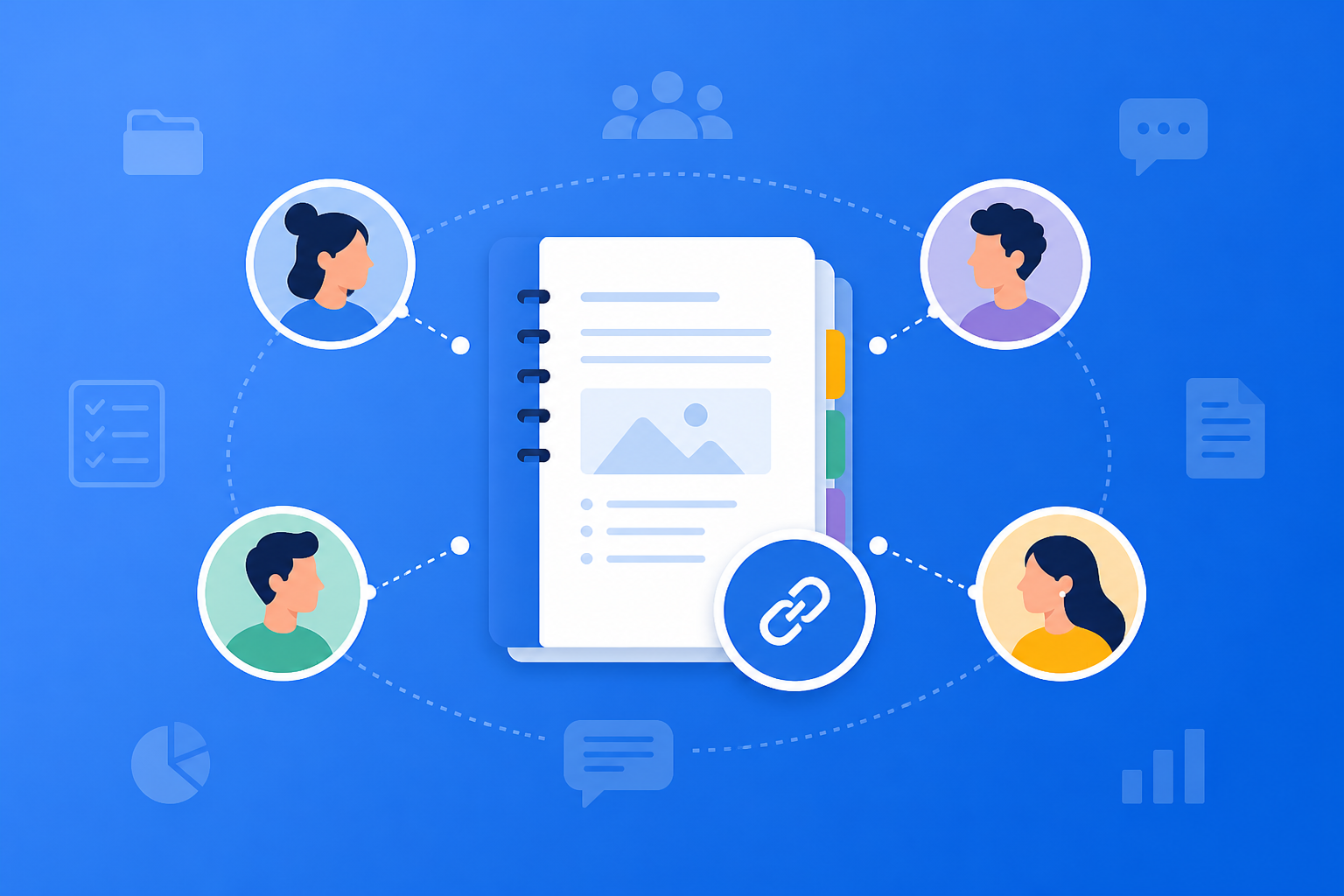
Using NotebookLM alone to read papers and review for exams is already highly efficient—but the real multiplier is often sharing a well-organized notebook with colleagues, classmates, or clients. When multiple people ask questions against the same set of PDFs, web pages, and video sources, Google’s AI note-taking tool upgrades from a “personal learning assistant” into a reusable source-grounded AI team knowledge base—answers stay verifiable, and materials no longer scatter across chat threads.
This article systematically covers NotebookLM notebook sharing methods, collaboration scenarios, permissions and content guidelines, plus practical tips to improve how teams use the product.
What Is NotebookLM Notebook Sharing & Collaboration?
Notebook sharing means opening a notebook you built in NotebookLM (including sources and Studio outputs) to others via a link or invitation so they can view or work with it together. Collaboration value shows up as:
- Unified sources: Everyone asks questions against the same document set, avoiding version chaos
- Verifiable answers: Source-grounded AI citations make discussions evidence-based and reduce “telephone game” errors
- Reusable outputs: Study Guides, mind maps, briefings, and more can be reused by the whole team
- Less duplicated work: One person organizes sources; many benefit from the AI research assistant
Unlike a generic cloud drive that “only stores files,” NotebookLM shares a conversational knowledge workspace.
How to Set Up NotebookLM Notebook Sharing?
Step 1: Polish a Share-Ready Notebook
- Sign in at the NotebookLM App
- Organize sources around a single project or course theme (see the multi-source management guide)
- Remove outdated, duplicate, or sensitive materials, and give sources clear names
Tip: Before sharing, self-test with 3–5 key questions using prompting tips to confirm the AI has no major misunderstandings—then open it to the team.
Step 2: Choose Share Scope and Permissions
- Find the Share entry in notebook settings
- Choose as needed: view-only, can ask questions, or higher collaboration permissions (per current product options)
- Invite members via link or specific accounts; when sharing externally, avoid including unsanitized internal data
Permission principle: least privilege—use “read-only + ask” for client demos; core R&D can use higher collaboration levels.
Step 3: Agree on Team Usage Norms
- Standardize prompt templates (task / constraints / output format) so results are comparable
- Important conclusions must be verified by clicking citations back to the original text (see Source-Grounded AI Explained)
- For external reporting, designate one member to generate a briefing and export—avoid everyone exporting their own version and creating confusion
That way NotebookLM collaboration does not become “everyone asking separately with no alignment.”
Which NotebookLM Scenarios Are Best for Sharing & Collaboration?
Student Groups and Course Projects
One person uploads textbooks and literature; the whole group divides questions and synthesizes arguments from the same notebook, then jointly refines a Study Guide or mind map.
Research Groups and Literature Meetings
A PI or librarian maintains a topic notebook; members prep with an Audio Overview before meetings, ask about conflicting conclusions during the meeting, and project citations on screen for verification. See the Audio Overview guide.
Enterprise Training and Project Delivery
Put product manuals, policies, and project docs into a shared notebook so new-hire onboarding and client Q&A share the same knowledge base; keep sensitive notebooks on separate permissions and do not mix them with public training notebooks.
7 Tips to Improve NotebookLM Team Collaboration
- One project, one notebook: Avoid a “company catch-all notebook” that causes answers to mix topics.
- Designate a source admin: Who can add/remove PDFs/URLs—write it into team agreements.
- Sanitize before sharing: Strip salary figures, secrets, unpublished client names, and other sensitive fields.
- Capture high-frequency good questions: Store validated prompts in a shared doc to lower the barrier for newcomers.
- Divide Studio outputs: Have designated people generate and update maps, guides, and briefings to reduce duplicate quota use.
- Sync on changes: Notify members after major source updates; regenerate Studio content when needed.
- Leverage Gemini 3.5: More stable for complex cross-document collaborative Q&A (see the Gemini 3.5 upgrade guide).
Notebook Sharing vs Cloud Drive vs Generic AI Group Chat: When to Use NotebookLM?
| Scenario | Recommended approach | Why |
|---|---|---|
| Team Q&A on the same materials | NotebookLM shared notebook | Source-grounded AI unified index; answers are citable |
| Only distributing original files | Cloud drive / Drive | Fast file transfer, but no intelligent Q&A |
| Brainstorming without source docs | Generic AI group chat | Good for ideation; not for citation verification |
| Formal external reports | Collaborative Q&A + briefing export | Shared notebook for extraction; export notebook for finalization |
The core of NotebookLM collaboration is having the team ask against the same evidence—not each chatting with their own model hallucinations.
How Sharing Works with Other NotebookLM Features
Sharing is the “distribution layer” and needs to work with content capabilities:
- Multi-source management: Source quality before sharing sets the collaboration ceiling
- Quality prompting: Unified team prompts make results alignable
- Study Guide / mind map / Audio Overview: Lower the onboarding cost for members
- Briefing export: Turn collaboration conclusions into archivable deliverables
- Gemini 3.5: Improves understanding stability under multi-person complex follow-ups
FAQ
Q: Do share recipients need a paid account?
A: Follow Google’s current policy. Before sharing, confirm the other party can open the link, and state the required permissions clearly in the invitation notes.
Q: Can the other person change my sources after I share?
A: It depends on the permissions you grant. For external or cross-department sharing, prefer more conservative permissions and keep core edit rights with admins.
Q: Can I share with many clients at once?
A: Yes—use a “project read-only notebook” pattern, but always sanitize, and periodically check whether the link still needs to remain active.
Summary
NotebookLM notebook sharing and collaboration turn Google’s AI note-taking tool from personal productivity software into a team source-grounded AI knowledge base. Whether for group assignments, research labs, or enterprise training, it is worth turning a “well-organized notebook” into a reusable shared asset.
Open the NotebookLM App now, polish a topic notebook and set up sharing; for a personal getting-started flow, see our getting started tutorial.
Next: put this article to work
Upload a PDF you are reading, ask source-grounded questions, and check citations.
This is an unofficial NotebookLM guide, not affiliated with Google. You will open the app and can sign in free with a Google account.
Related articles
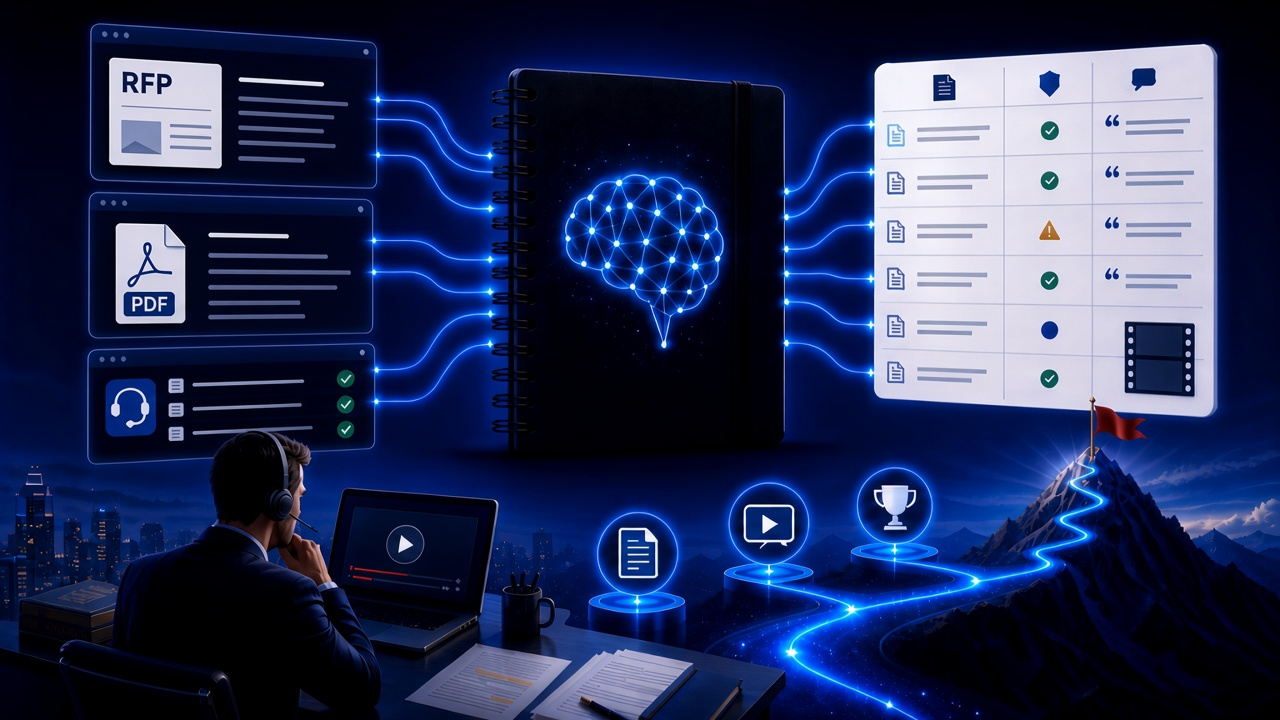
NotebookLM Consulting Knowledge Base Complete Guide: Turn RFPs, Industry Reports, and Interview Notes into a Verifiable Project Desk with Source-Grounded AI
A complete guide to consulting knowledge bases with NotebookLM—from RFPs, industry reports, and interview notes to comparison tables, gap lists, and briefing exports—helping you turn long materials into citation-verifiable project notes with Google NotebookLM, the AI note-taking tool.
Read more →
NotebookLM Language Learning Complete Guide: Turn Textbooks, Subtitles, and Vocabulary Lists into a Verifiable Listen-Speak-Read-Write Desk with Source-Grounded AI
A complete guide to language learning with NotebookLM—from textbook PDFs, subtitle scripts, and word lists to example comparisons, confusion lists, and Audio Overviews—helping you turn language materials into citation-verifiable study notes with Google NotebookLM, the AI note-taking tool.
Read more →