Blog
NotebookLM Teacher Lesson Planning & Classroom Teaching Complete Guide: Turn Textbooks into a Verifiable Classroom Assistant with Source-Grounded AI
A complete guide to teacher lesson planning and classroom teaching with NotebookLM—from aggregating curriculum standards, textbooks, and slides to lesson plans, in-class questions, and briefing exports—helping you make planning evidence-based and explanations citation-traceable with Google's AI note-taking tool.
NotebookLM Teacher Lesson Planning & Classroom Teaching Complete Guide: Turn Textbooks into a Verifiable Classroom Assistant with Source-Grounded AI
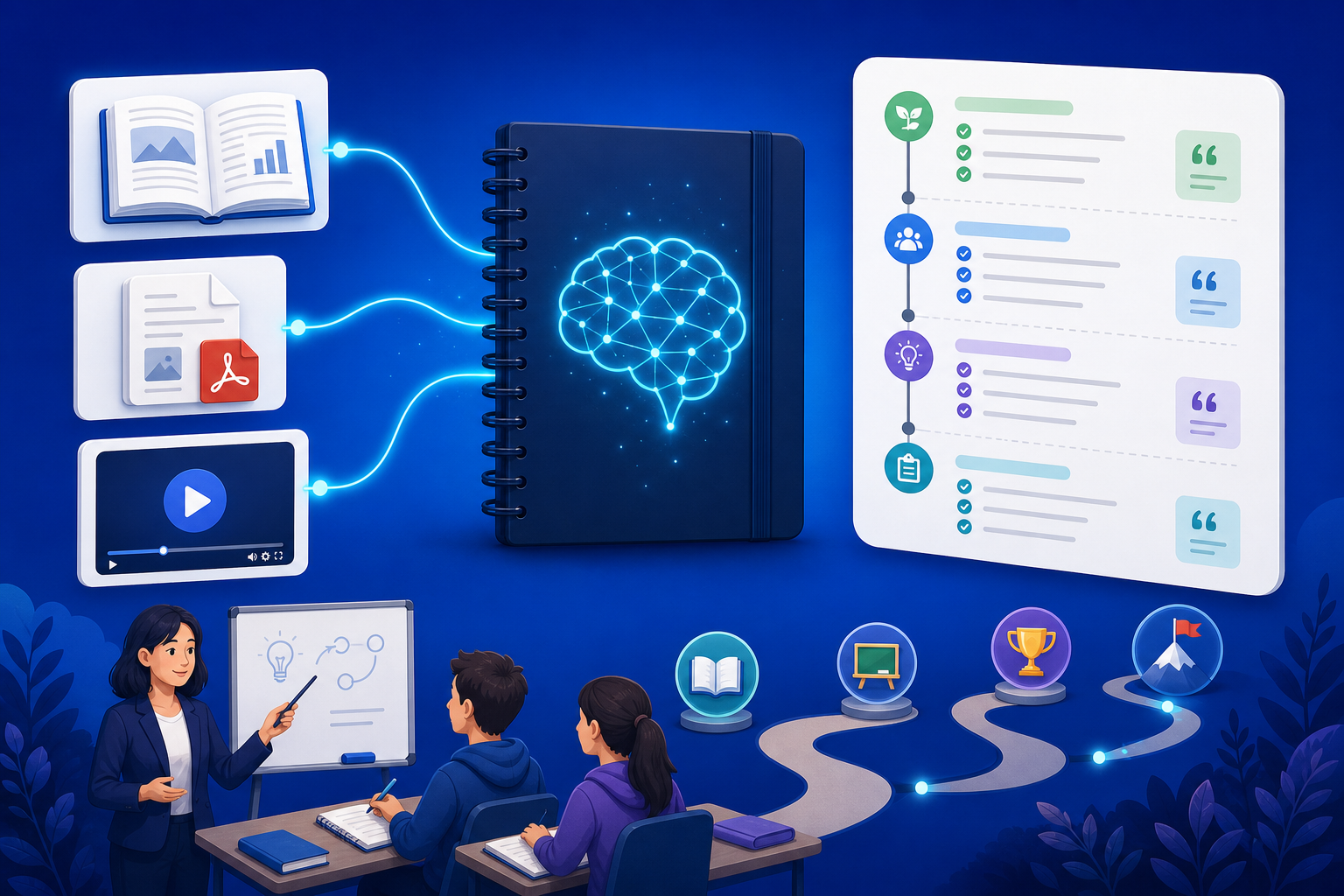
The most time-consuming part of teacher lesson planning is often not “finding no materials,” but curriculum standards, textbook chapters, past slides, exercise books, and research-group notes scattered everywhere: the same knowledge point is worded inconsistently across the textbook, the teacher’s guide, and a public-lesson video, so in class you can only stitch explanations from memory. Put the curriculum-standard PDF, textbook scans, slides, and research-meeting recordings for the same lesson into NotebookLM, and Google’s AI note-taking tool can do source-grounded Q&A from your uploaded sources—learning objectives, knowledge-point alignments, and in-class question lists all come with clickable citations, turning planning from “spoken from experience” into “classroom design with an evidence chain.”
This article systematically covers how to build a lesson notebook in NotebookLM, generate verifiable lesson plans and classroom materials, who it fits, and anti-hallucination tips—helping K–12 teachers, university lecturers, and instructional specialists embed an AI research assistant into real planning and teaching workflows.
Why Is Lesson Planning Better with NotebookLM Than Generic AI Alone?
Generic models can write fluent “lesson-plan voice,” yet often invent non-existent curriculum clauses, off-syllabus knowledge points, or wrong example problems; NotebookLM’s advantages are:
- Explanations can return to sources: Every key definition, example, and curriculum requirement has a clickable citation back to a textbook paragraph or slide page
- Materials can share one library: PDFs, web pages, public-lesson YouTube, and research-meeting notes for the same lesson are managed together
- Structures are reusable: Study Guides, mind maps, and briefings can iterate on the same lesson
- Boundaries can be declared: Require “if sources do not mention it, say so,” reducing circulating teaching methods written as current curriculum
Especially important for term planning, polishing public lessons, aligning progress across classes, and reducing tacit methods that “only live in a veteran teacher’s head.”
How Do You Complete Evidence-Based Teacher Lesson Planning with NotebookLM?
Step 1: Build a planning notebook by lesson / unit
- Sign in to the NotebookLM app
- Create a notebook by lesson or unit (e.g., “Grade 10 Physics Newton’s Second Law Lesson 3”), and include only sources directly relevant to that lesson
- Upload curriculum-standard and textbook PDFs, teacher-guide chapters, public-lesson videos, or research-meeting notes (see multi-source management, YouTube learning, meeting capture)
Tip: One notebook maps to one clear lesson or unit; dumping a whole term’s noise dilutes the precision of “what this lesson should and should not cover.”
Step 2: Use questions and Studio to generate a verifiable lesson-plan skeleton
- “Based on the sources, output this lesson’s learning objectives, key/difficult points, and matching curriculum clauses, and label the materials for each item”
- “Generate an in-class question table: Question | Expected student answer | Source excerpt | Common errors”
- “List off-syllabus risks and definitions that must go on the board, distinguishing ‘textbook original text’ from ‘teacher-guide supplementary inference’”
Prompt patterns are in the quality prompting guide; when the knowledge structure is unclear, first use a mind map or Study Guide to clarify modules.
Step 3: Teach the class, export a briefing, and open preview Q&A for students
- Before class, verify key definitions, data, and example-problem numbers—always open citations in NotebookLM to confirm (see source-grounded AI explained)
- When syncing the lesson plan with the research group, generate a briefing and export; for same-grade co-planning of the same unit, share the notebook
- When materials are long, use an Audio Overview so students hear the knowledge landscape first, then read the textbook carefully
Before formally printing handouts or an external public lesson: wording of learning objectives, adaptation to student readiness, and assessment design remain the teacher’s responsibility; NotebookLM nails down the “materials layer.”
Who Benefits Most from NotebookLM for Lesson Planning and Classroom Teaching?
K–12 subject teachers
Turn curriculum standards, textbooks, and exercise books into a Q&A-ready planning pack to cut repeated page-flipping; for test-oriented review lessons, also see the exam prep guide.
University lecturers and TAs
Before a course starts, import assigned readings, lecture notes, and past Q&A into one library; generate discussion outlines and citation-excerpt tables (writing patterns can follow the content writing guide).
Instructional specialists and planning-group leads
Cross-check multiple curriculum interpretations, quality-lesson recordings, and school-based assignments, then produce a unit briefing—suited to internally unifying “what to teach, what to practice, what to assess” (research-style organization can also follow the competitive analysis guide).
7 Tips to Improve NotebookLM Lesson Planning and Classroom Teaching Results
- One lesson, one notebook: Separate notebooks by lesson so questions do not spill into the next unit.
- Curriculum before the teacher’s guide: Anchor citable curriculum and textbook original text first, then add teacher-guide experience and label source types.
- Force-label uncovered items: Require listing student-readiness assumptions and extension items that “materials never mention,” avoiding a false sense of completeness.
- Put version and term in the notebook name: Curriculum and textbooks often revise; put the school year and edition in the title.
- Split student personal data into a separate notebook: Manage grades, comments, and family contact details as independent sensitive sources; control sharing scope.
- You set the lesson-plan framework: Let AI fill content; do not let AI invent teaching segments unrelated to the curriculum.
- Use Gemini 3.5 well: Long textbooks and multi-lesson public-class synthesis are more stable (see Gemini 3.5 upgrade explained).
NotebookLM Lesson Planning vs Generic AI vs Pure Experience Planning: How to Choose?
| Scenario | Recommended approach | Why |
|---|---|---|
| Must follow current curriculum/textbook and be auditable | NotebookLM source-grounded planning flow | Citations are traceable; fits public lessons and grade-wide co-planning |
| Classroom-activity brainstorming or icebreakers with no materials | Generic AI | Not bound by sources; fits divergent thinking |
| Live demos, lab safety, and classroom management | Teacher judgment in the moment | Safety and discipline cannot rely on document Q&A alone |
| Same-grade co-planning of the same unit | NotebookLM sharing + briefing | Materials stay unified; fewer conflicting versions |
NotebookLM does not “automatically teach a full class for you”; it lets planning and explanation stand on a verifiable textbook.
Synergy with Other NotebookLM Features
The teacher planning flow chains capabilities:
- Multi-source / YouTube / meeting notes: Input textbooks, public lessons, and research meetings
- Quality prompting / mind maps / Study Guide: Dig into knowledge points and the lesson-plan skeleton
- Audio Overview: Students preview, or teachers build the big picture on the commute
- Briefing export / sharing & collaboration: Research-group review and grade-wide co-planning
- Content writing / close-reading patterns: Switch narrative for external public-lesson decks or deep reading (see literature review guide)
- Gemini 3.5: Improve multi-document synthesis quality
FAQ
Q: Can NotebookLM directly generate a printable formal lesson plan?
A: It can generate structure, question tables, and example-problem drafts, but wording of learning objectives, time allocation, and school-based norms must be human-gated, with citation checks completed.
Q: When students ask questions in class, will the AI invent knowledge points that are not in the textbook?
A: In source-grounded mode it should answer only from notebook materials; require “if not mentioned, say so,” and human-review off-syllabus and scientifically contested questions.
Q: Are materials with student grades or family information suitable for a shareable planning notebook?
A: Only within authorized scope; desensitize before external sharing or cross-school collaboration; keep sensitive materials in separate notebooks with stricter permissions.
Conclusion
NotebookLM teacher lesson planning and classroom teaching turns Google’s AI note-taking tool into the teacher’s “lesson knowledge hub”: textbooks can be deposited, lesson plans have evidence, explanations can be rechecked. Whether term planning, polishing a public lesson, or grade-wide co-planning, it is worth using a source-grounded AI research assistant to pull teaching from spoken experience back to evidence-driven practice.
Open the NotebookLM app now and build a planning notebook for the next lesson; for basics, see our getting started tutorial.
Next: put this article to work
Put textbooks or notes in a notebook, generate a Study Guide, then verify against the original.
This is an unofficial NotebookLM guide, not affiliated with Google. You will open the app and can sign in free with a Google account.
Related articles
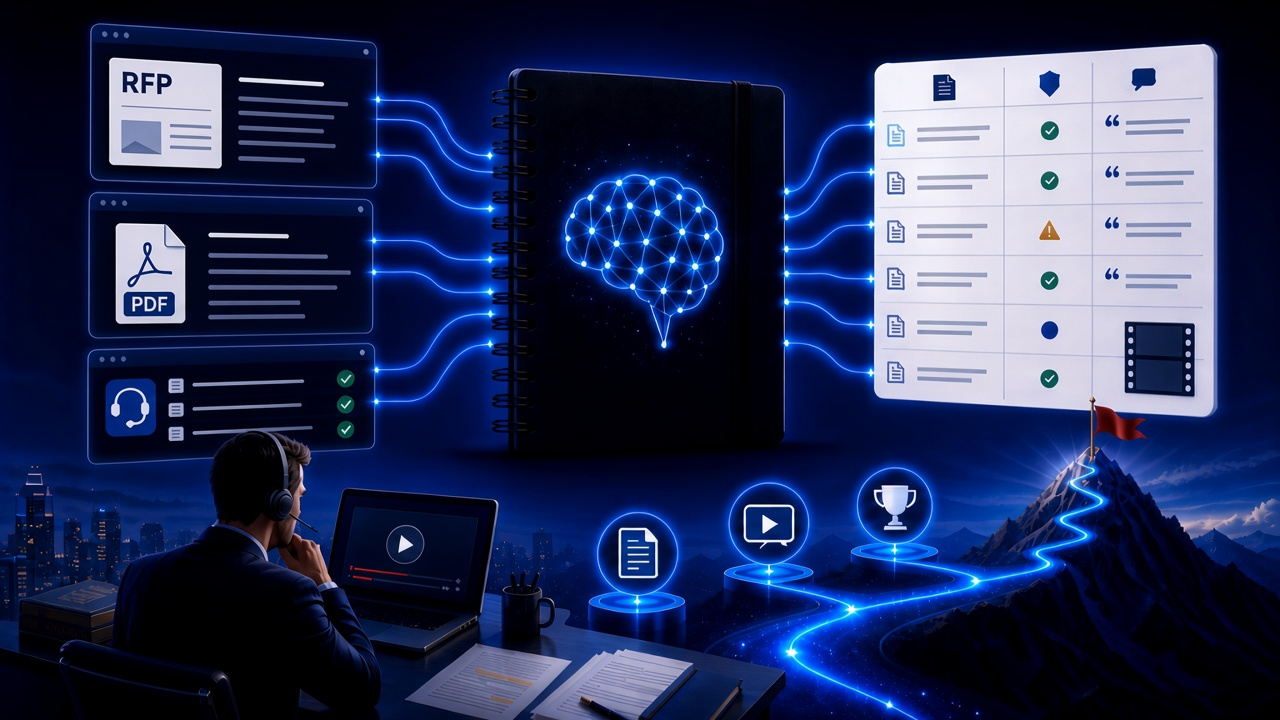
NotebookLM Consulting Knowledge Base Complete Guide: Turn RFPs, Industry Reports, and Interview Notes into a Verifiable Project Desk with Source-Grounded AI
A complete guide to consulting knowledge bases with NotebookLM—from RFPs, industry reports, and interview notes to comparison tables, gap lists, and briefing exports—helping you turn long materials into citation-verifiable project notes with Google NotebookLM, the AI note-taking tool.
Read more →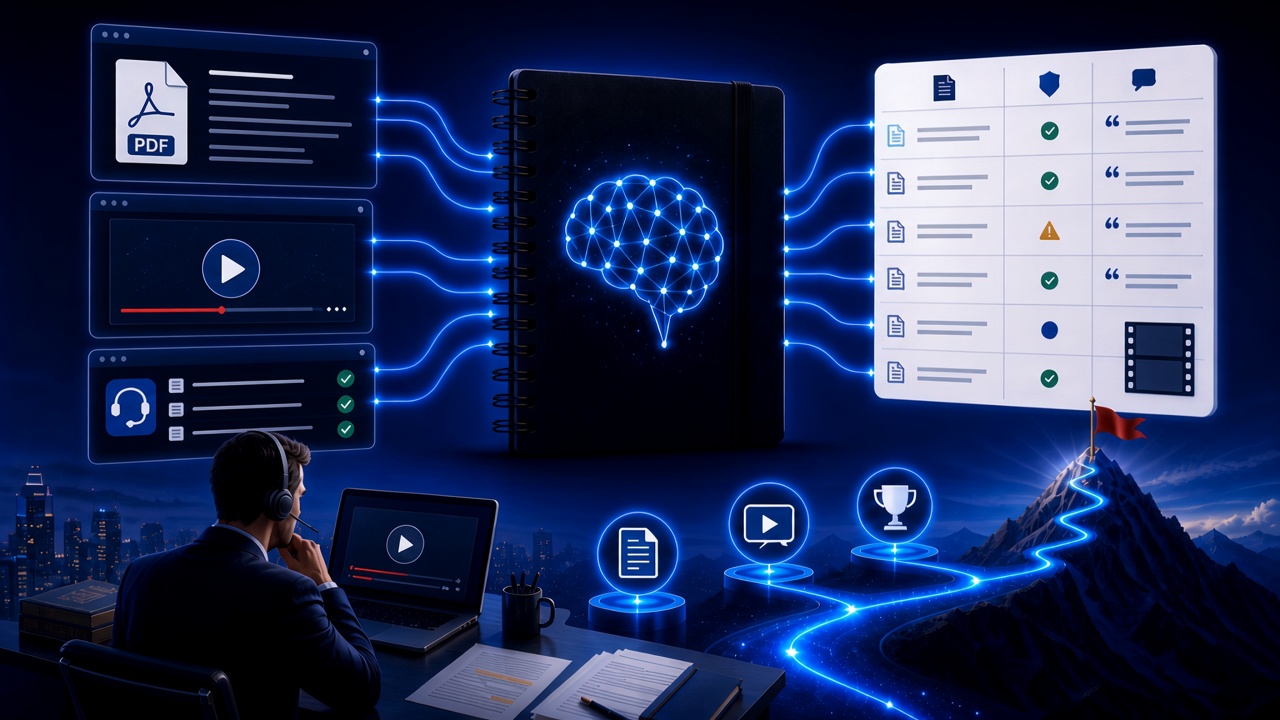
NotebookLM Language Learning Complete Guide: Turn Textbooks, Subtitles, and Vocabulary Lists into a Verifiable Listen-Speak-Read-Write Desk with Source-Grounded AI
A complete guide to language learning with NotebookLM—from textbook PDFs, subtitle scripts, and word lists to example comparisons, confusion lists, and Audio Overviews—helping you turn language materials into citation-verifiable study notes with Google NotebookLM, the AI note-taking tool.
Read more →