Blog
NotebookLM Video Overview Complete Guide: Turn Long PDFs into Rewatchable Explainer Clips with Source-Grounded AI
A complete guide to NotebookLM Video Overview—from building a notebook, generation steps, and splitting work with Audio Overview to citation spot-checks—helping you turn papers, slides, and policy PDFs into rewatchable explainer clips with Google NotebookLM, the AI note-taking tool.
NotebookLM Video Overview Complete Guide: Turn Long PDFs into Rewatchable Explainer Clips with Source-Grounded AI
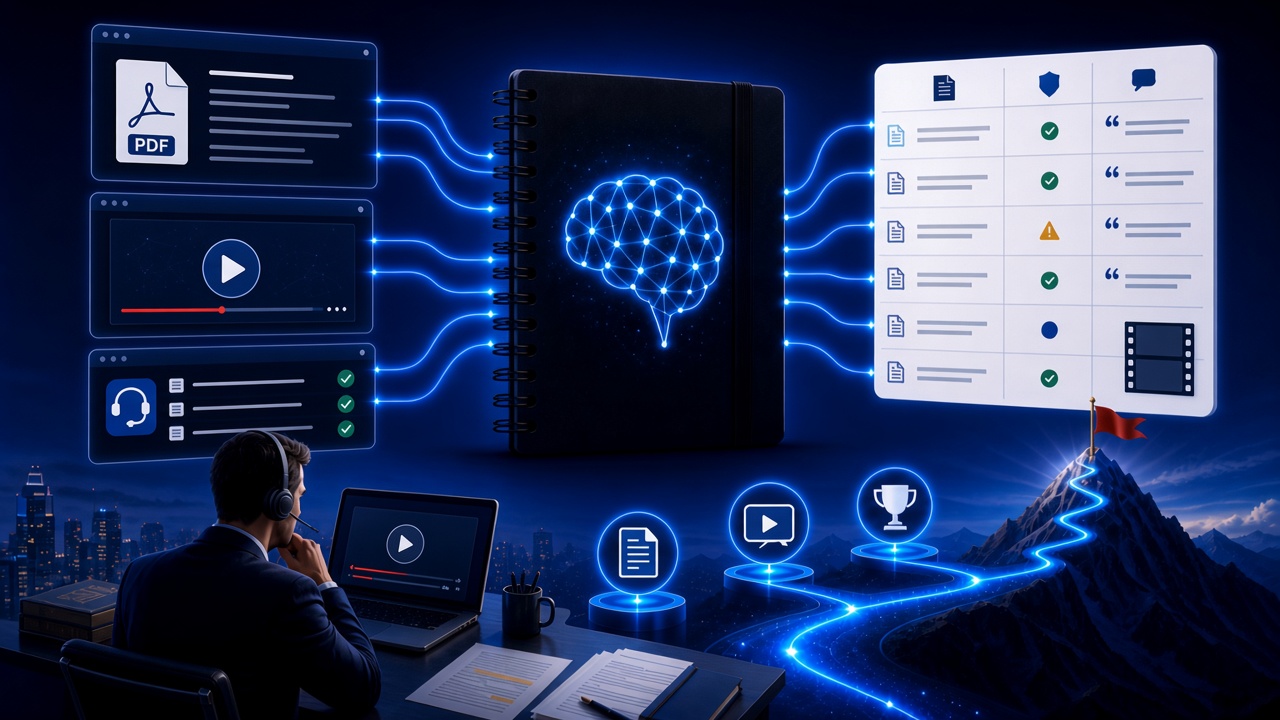
The hardest part of a long document is often “explaining it to someone else”: figures are scattered, lecture audio does not match page numbers, and a policy PDF has no timeline, so before a meeting you can only improvise a rough voice-over. Put the same-topic PDFs, pages, and slides into NotebookLM, generate a Video Overview in Studio, and Google NotebookLM, as a source-grounded AI note-taking tool, will produce a visual explainer from your uploaded sources—chapter structure, key definitions, and contrast relations packed into a rewatchable clip, turning study from “scanning page by page” into “see the landscape first, then click back to the original.”
This article systematically covers how to generate a Video Overview for a single topic in NotebookLM, how it splits work with Audio Overview, who it fits, and anti-hallucination tips—helping learners, trainers, and content teammates embed an AI research assistant into a real explainer workflow. It also fits people searching “NotebookLM Video Overview,” “NotebookLM video summary,” or “how to use NotebookLM”: long PDFs and slide decks are the most common entry to this visual Q&A.
Why Is Video Overview Better with NotebookLM Than Generic Video AI Alone?
Generic video models can produce fluent voice-over and pretty storyboards, yet often invent conclusions the paper never had, splice data from two sources into a fake chart, or even drop in terms from another book; NotebookLM’s advantages are:
- Frames can return to sources: Key definitions, numbers, and chapter order should go back to your uploaded PDF or page, not be filled in from model common sense
- Materials can share one library: Papers, slide PDFs, announcement pages, and explainer YouTube for the same topic are managed together (see multi-source management)
- Structures are reusable: Study Guides, mind maps, briefings, and Video Overviews can iterate on the same topic instead of generating a clip from scratch in a new chat every time
- Boundaries can be declared: Require “do not perform charts or conclusions that never appear in the sources,” reducing spoken habit written as “the original already proved it”
Especially important for rewatchable preview, cross-timezone training, and external explainers. For how NotebookLM and ChatGPT split work, see the NotebookLM vs ChatGPT guide: lock the file layer first, then the storyboard and voice-over layer. For product docs use the product docs guide; for support wording use the customer support guide; do not mix explainer clips, policy replies, and engineering specs in one notebook.
How Do You Complete an Evidence-Based Video Overview with NotebookLM?
Step 1: Build a visual notebook around a single topic
- Sign in to the NotebookLM app
- Create a notebook for a single topic (e.g., “Supply-chain carbon accounting · 2026 slides”), include only sources directly related to that explainer, and do not dump a year’s courses into one notebook
- Upload papers and slide PDFs, announcement pages, and explainer recordings or meeting notes (see YouTube learning, meeting capture)
Tip: One notebook maps to one explainer slice or one version (for example, only covering “how to calculate Scope 3 emissions”); dumping ten unrelated topics dilutes “which materials this clip is actually about.” Make sure you have the right to use those texts and footage, and follow your organization’s confidentiality rules.
Step 2: Use questions and Studio to generate a rewatchable explainer skeleton
- “Based only on the sources, output: Explainer segment | Matching chapter/page | Definitions that must appear | Items sources do not cover”
- “Generate a storyboard table: What the frame should show | How the original is written | Which page | Whether a schematic is allowed”
- “List three data points, timelines, or exceptions most likely to be oversimplified by a short clip, and label them separately”
Prompt patterns are in the quality prompting guide; when the topic structure is unclear, first use a mind map or Study Guide to clarify modules. When you need an external voice-over script, human-polish the already-checked outline; writing patterns can follow the content writing guide.
Step 3: Spot-check citations, compare with Audio Overview, and share with co-learners
- Before external posting or writing training standards, verify key numbers, definitions, versions, and charts—always open citations in NotebookLM to confirm (see source-grounded AI explained)
- When syncing with the team, generate a briefing and export; for co-reviewing the same topic, share the notebook
- When you need to “listen” rather than “watch,” switch to an Audio Overview for commute preview, then return to contested passages, reread the original, and rewatch the Video Overview
Formal public release, grading, and brand voice-over remain content and training owners’ call; NotebookLM nails down “what the files actually wrote” and does not replace editing software, rights review, or a human lecturer.
Who Benefits Most from NotebookLM Video Overview?
Students, self-learners, and exam takers
Turn assigned textbooks, slides, and papers into a rewatchable preview clip; before a test, locate chapters with questions instead of flipping dozens of PDF pages at the last minute; for a quiz rhythm see the exam prep guide.
Training, teaching research, and knowledge operations
Cross-check multiple slide decks, notices, and explainer recordings, then produce a “must-not-simplify in the clip” list—suited to internally unifying “which line is the current teaching”; lesson design can also follow the teacher lesson-planning guide; for long-book reading see the book notes guide.
Content, research, and cross-timezone collaboration
Put required readings in the same notebook; generate an explainer outline and a list of easy-to-mix definitions; review writing can follow the literature review guide, external research reports the research report guide, and new-hire pacing the onboarding guide.
7 Tips to Improve NotebookLM Video Overview Results
- One topic, one notebook (or one slide-deck version, one notebook): Separate notebooks by course so a clip does not spill into another set of definitions and timelines.
- Source PDF before voice-over scripts: Anchor the citable live textbook/policy PDF first, then upload voice-over drafts and huddle notes, and require distinguishing “original text” from “explainer elaboration.”
- Force-label uncovered items: Require listing diagrams, cases, and numbers that “materials never provide,” avoiding habit voice-over drawn as if already in the original.
- Put version and audience in the notebook name: Put topic, material version, and audience (e.g., undergrad intro / internal training, 2026-09) in the title.
- Split footage and personal data: Unauthorized likenesses, client cases, and internal tickets do not belong in a widely shareable visual notebook; permissions follow least privilege.
- You set the storyboard outline: Let AI fill excerpts and comparison tables; do not let AI invent structures the originals never had, such as “ten must-win conclusions.”
- Use Gemini 3.5 well: Very long slide PDFs and multi-source synthesis are more stable (see Gemini 3.5 upgrade explained).
NotebookLM Video Overview vs Audio Overview vs Generic Video AI: How to Choose?
| Scenario | Recommended approach | Why |
|---|---|---|
| Must be based on specified PDFs/slides with a rewatchable structure | NotebookLM Video Overview | Explainer is bound to sources; fits preview, co-review, and spot-checks |
| Commute listening, no screen | NotebookLM Audio Overview | Podcast form; uses less visual attention |
| Brand ads or pure creative storyboards with no materials | Generic video AI | Not bound by sources; fits divergent visuals |
| You only need to open one known slide or paper page | Search / open the page directly | No need to build a notebook and generate a clip first |
NotebookLM does not “automatically cut a commercially releasable film”; it lets explainer clips stand on verifiable sources. It is Google’s AI research assistant, used to cut long-PDF mis-teaching and mixed structure—not to replace rights review or human teaching. Similar-rule comparison can also follow the competitive analysis guide; for contracts use the legal contract guide.
Synergy with Other NotebookLM Features
The Video Overview flow chains capabilities:
- Multi-source / YouTube / meeting notes: Input slides, explainer recordings, and discussions
- Quality prompting / mind maps / Study Guide: Dig chapter modules and a definitions glossary
- Audio Overview: Build a sound landscape on a commute, then come back to watch Video Overview and open citations
- Briefing export / sharing & collaboration: Training pre-reads and cross-timezone co-review
- Content writing / literature and book-note patterns: Switch narrative for public scripts or deep explainers
- Gemini 3.5: Improve long-PDF and multi-version synthesis quality
FAQ
Q: Can I upload a full paper or slide PDF to NotebookLM to generate a Video Overview?
A: Yes, provided you have the right to use that file and it fits confidentiality and copyright rules. After upload, split notebooks by topic or slide-deck version, require marking “charts and conclusions that do not appear in the original text,” and still spot-check citations on the generated clip.
Q: Will NotebookLM Video Overview write voice-over elaboration as “the original already proved it”?
A: It can, if voice-over drafts and the live textbook sit in the same notebook and the prompt is vague. Separate source types, and require a table that distinguishes “original text” from “explainer elaboration / schematic.”
Q: Can a Video Overview directly replace class, a defense, or a public release cut?
A: It can generate a visual explainer of structures, definitions, and data excerpts that appear in the materials, but grading, public promises, and film release must be decided by authorized staff; frames and conclusions the sources never gave should not be treated as facts.
Conclusion
NotebookLM Video Overview turns Google NotebookLM, the AI note-taking tool, into learning and training’s “single-topic visual hub”: materials can be deposited, clips have evidence, explainers can be rechecked. Whether previewing a long PDF, checking slides, or preparing cross-timezone training, it is worth using a source-grounded AI research assistant to pull collaboration from impression voice-over back to evidence-driven practice.
Open the NotebookLM app now and generate a Video Overview for the next long-document topic; for basics, see our getting started tutorial.
Next: put this article to work
Generate an Audio or Video Overview first, then click back to the source to check key figures.
This is an unofficial NotebookLM guide, not affiliated with Google. You will open the app and can sign in free with a Google account.
Related articles
NotebookLM Consulting Knowledge Base Complete Guide: Turn RFPs, Industry Reports, and Interview Notes into a Verifiable Project Desk with Source-Grounded AI
A complete guide to consulting knowledge bases with NotebookLM—from RFPs, industry reports, and interview notes to comparison tables, gap lists, and briefing exports—helping you turn long materials into citation-verifiable project notes with Google NotebookLM, the AI note-taking tool.
Read more →
NotebookLM Language Learning Complete Guide: Turn Textbooks, Subtitles, and Vocabulary Lists into a Verifiable Listen-Speak-Read-Write Desk with Source-Grounded AI
A complete guide to language learning with NotebookLM—from textbook PDFs, subtitle scripts, and word lists to example comparisons, confusion lists, and Audio Overviews—helping you turn language materials into citation-verifiable study notes with Google NotebookLM, the AI note-taking tool.
Read more →